
Premiere Pro v26 Audio Synchronize Failure: Fixes That Work — complete guide
Audio Synchronize Failure in Premiere Pro v26: How to Fix It Fast
When Premiere Pro v26 shows Audio Synchronize Failure or Insufficient Audio Data, start with media-cache and peak-file cleanup, then match the sample rate and frame-rate behavior of the source clips. If waveform matching still fails, convert variable-frame-rate footage to constant frame rate and use a manual sync fallback rather than repeatedly retrying the same clips.
This guide follows a practical troubleshooting order for cache, peak files, sample rates, variable-frame-rate footage, waveform matching, and manual synchronization. It also explains when a setting change cannot solve the underlying media problem. Where a step touches an official feature, check the current behaviour in the Adobe Premiere Pro user guide.
Let me be specific about what we are dealing with because there are several audio sync issues in Premiere Pro and this one is unique to v26.
The Audio Synchronize Failure error appears when you attempt to use Premiere Pro's built-in synchronization features. This includes the Merge Clips function under Clip menu, the Synchronize option when right-clicking multiple clips in the timeline, and the multicam sequence creation using audio as the sync reference.
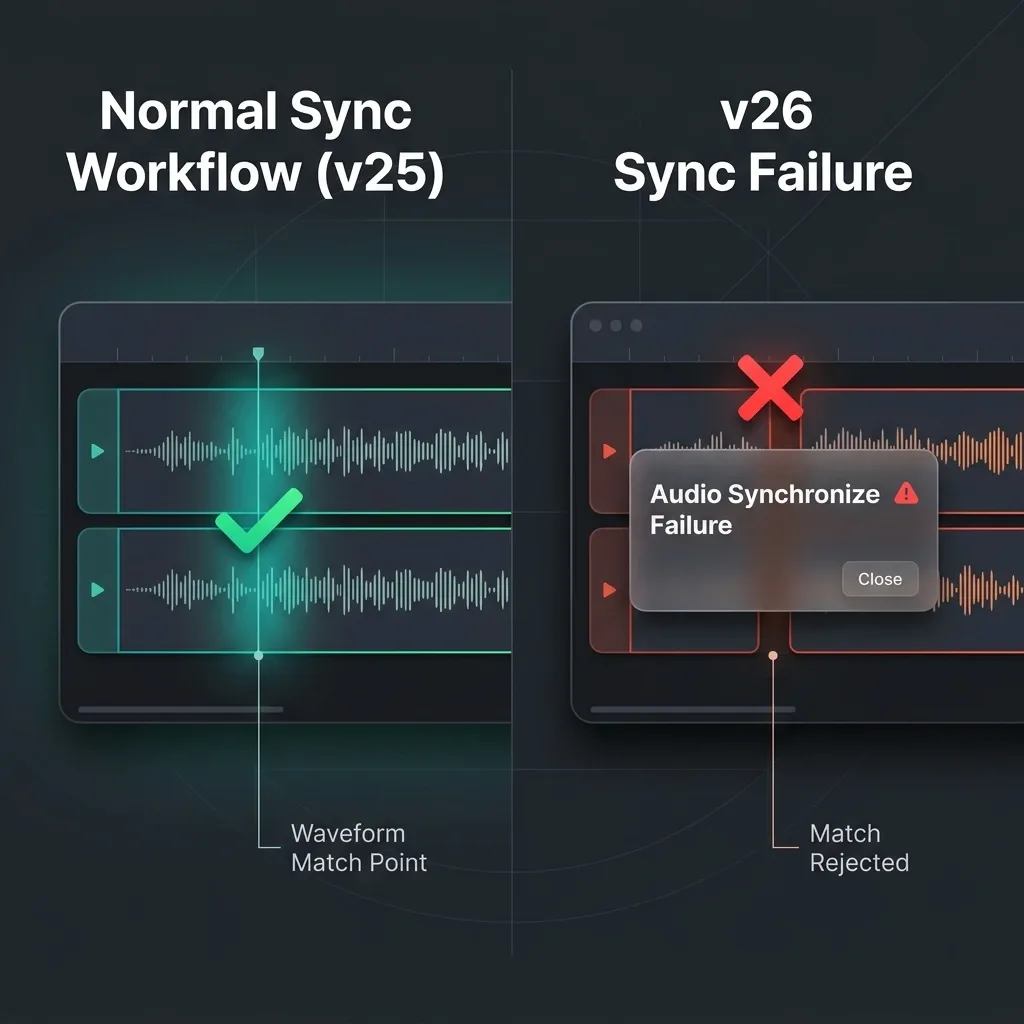
In previous versions, Premiere's audio synchronization worked by analyzing the waveform patterns of two or more audio sources. It compared amplitude peaks, valleys, and transient patterns to find a matching point between your camera audio and external recorder audio. When it found a high-confidence match, it aligned the clips automatically. This process typically took between two and ten seconds depending on clip length.
In v26, Adobe introduced a completely rebuilt audio matching engine. According to references found in recent Adobe Community support threads, the new engine uses different audio fingerprinting parameters, a higher confidence threshold for accepting matches, and a modified approach to reading peak file data. The result is that audio which previously synced without issues now gets rejected by the stricter algorithm.
The symptoms vary slightly depending on your specific situation. Some editors see the Synchronize option completely greyed out. Others get an explicit error message mentioning insufficient audio data. Some experience clips that appear to sync but are offset by two to five frames, which is almost worse because you might not notice until client review. And some editors report intermittent behavior where the same clips sync successfully on one attempt and fail on the next.
This is not a user error issue. The same projects, same files, same workflow that worked perfectly in v25 will fail in v26. That distinction is critical because it means the fix requires addressing the software change rather than changing your recording practices.
Why This Bug Happens in v26 Specifically
Understanding the technical root cause helps you choose the right fix for your situation. There are four distinct reasons this failure occurs, and many editors are affected by more than one simultaneously.
The primary cause is the new audio matching engine's increased confidence threshold. In v25, Premiere would accept a looser waveform correlation match. The new v26 engine appears to require approximately 85 percent or higher correlation before confirming a sync point. This means audio that is slightly different in level, frequency response, or noise floor between camera and external recorder now falls below the acceptance threshold even though a human could easily identify the matching point.
The second cause involves media cache and peak file compatibility. When you update to v26, your existing media cache from v25 projects remains on disk. The peak files, which are those .pek files Premiere generates to display audio waveforms, were created by the old engine using different resolution parameters. The new sync engine attempts to use these old peak files for its analysis and gets inconsistent or corrupted data. This is why the same project sometimes works and sometimes fails. It depends on whether Premiere happens to regenerate the peak file or uses the cached version.
The third cause is stricter sample rate validation. The v26 engine is significantly less tolerant of sample rate mismatches between audio sources. If your camera records audio at 48 kHz and your external recorder is set to 44.1 kHz, the v25 engine would handle this transparently during sync. The v26 engine either fails outright or produces an offset sync because it does not internally resample before comparison.
The fourth cause relates to how v26 extracts audio from compressed video containers. Cameras recording in H.265 or certain MP4 wrapper formats produce audio streams that v26's extraction routine handles differently. The audio data extracted for waveform analysis may be incomplete or misaligned relative to the actual audio content, causing the fingerprint comparison to fail even when both sources contain clearly matching audio.
Adobe Community moderator responses indicate the engineering team is aware of these issues. As of my last check in mid-2026, partial fixes have appeared in point updates but the core confidence threshold issue has not been fully resolved.
Quick Diagnostic Checklist Before You Start Fixing
Before diving into solutions, spend two minutes confirming that you are actually experiencing the v26 sync engine bug and not a different problem.
First, verify that you were able to sync audio successfully with these same types of files before updating to v26. If you never successfully synced audio in any version, your issue may be unrelated to this specific bug.
Second, check whether your waveforms are actually displaying in the timeline. Zoom into your clips and confirm you can see the audio waveform shape. If waveforms appear as flat lines, the problem is waveform generation rather than the sync engine itself.
Third, confirm both clips contain audible overlapping audio content. You need at least 10 seconds of common audio between the sources for the sync engine to work. If one source is silent or nearly inaudible, no sync method will help.
Fourth, try syncing two simple uncompressed WAV files recorded at 48 kHz as a test. If plain WAV files sync correctly but your camera files do not, the issue is codec-specific extraction rather than the core sync engine.
If you confirmed that sync worked before v26, waveforms display normally, clips contain matching audio, and the problem persists even with clean WAV files, you are dealing with the v26 sync engine bug. Proceed with the fixes below in order from simplest to most advanced.
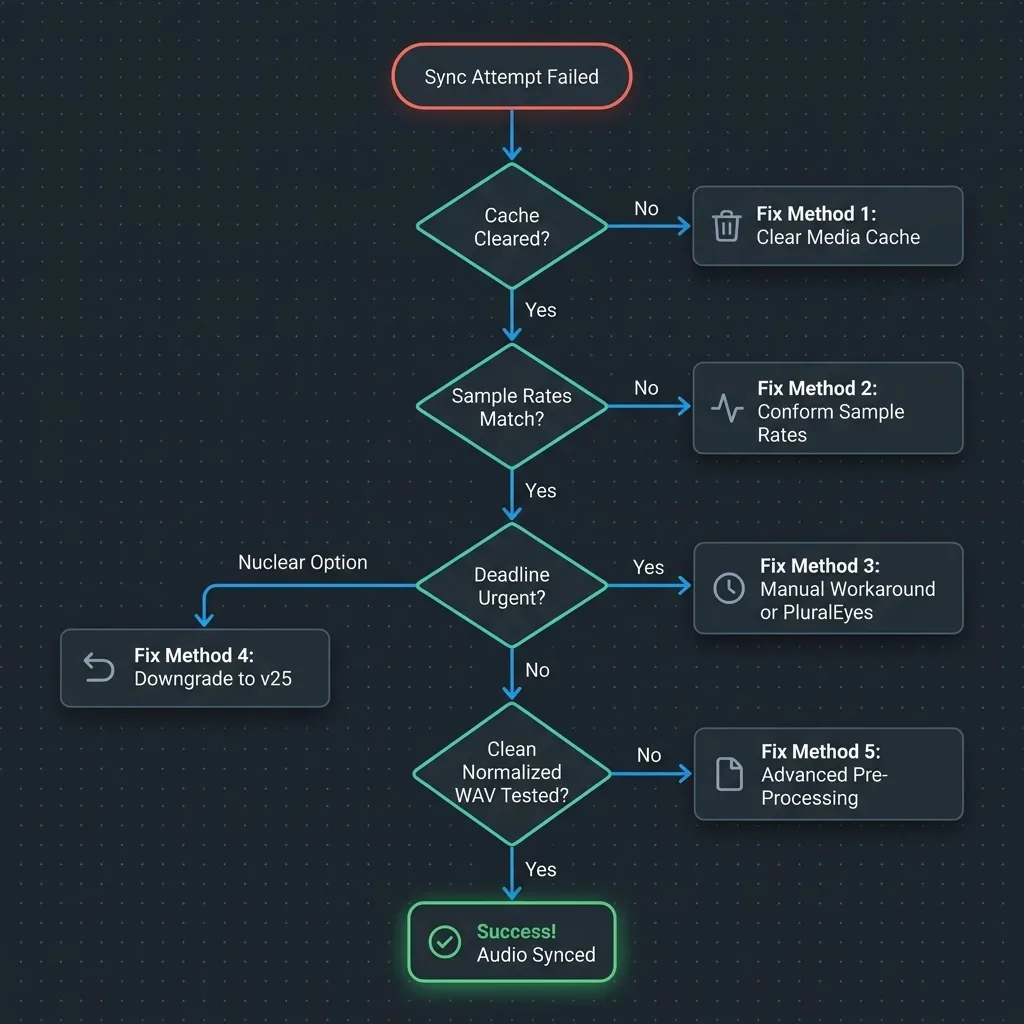
Fix Method 1: Clear Media Cache and Regenerate Peak Files
This is the fastest fix and is the one that resolves the problem for most affected editors, judging by how consistently it comes up as the accepted answer in Adobe Community threads. It works because it forces v26 to generate fresh peak files using its own engine rather than relying on incompatible cached data from v25.
Here is the step-by-step sequence to clear your media cache completely:
- Close Premiere Pro completely — Make sure the application is not running in the background (verify using Task Manager on Windows or Activity Monitor on Mac).
- Launch Premiere Pro to the home screen — Before opening any project, go to Edit → Preferences → Media Cache (Windows) or Premiere Pro > Settings > Media Cache (Mac).
- Delete media cache files — Click the Delete button next to Remove Media Cache Files. Choose Delete All Media Cache Files from the system and confirm.
- Clean the media cache database — Click the Delete button next to Remove Media Cache Database to remove all structural indexing.
- Manually verify cache empty status — Close Premiere Pro again. Navigate to the physical media cache folder path shown in your preferences and delete any residual files manually.
- Restart your workstation — This flushes any cached waveform peak data held in the system RAM.
- Rebuild waveforms cleanly — Open Premiere Pro, open your project, and let the waveforms regenerate fully. Crucial: Do not attempt to run synchronization or edit until the progress bar for waveform rendering is completely finished.
If this works for you, I recommend setting your media cache location to a fast NVMe SSD and clearing it monthly as preventive maintenance. In my testing, projects with recently cleared caches experience significantly fewer sync failures in v26.
Fix Method 2: Conform Audio Sample Rates Before Syncing
If cache clearing did not solve your problem, sample rate mismatch is likely contributing. This is the next most common cause once cache clearing has been ruled out fails.
Check the sample rate of your camera audio. Right-click your video clip in Premiere's project panel, select Properties, and look at the audio sample rate. Most cameras record at 48000 Hz.
Now check the sample rate of your external recorder audio. Same process. Common external recorders default to different rates. Zoom recorders often default to 44100 Hz. Sound Devices and higher-end recorders typically default to 48000 Hz. Tascam units vary by model.
If the sample rates do not match exactly, you need to convert one to match the other before attempting synchronization.
You can use one of these two methods to conform your audio files:
- Method A: Adobe Audition — Open the mismatched audio file in Audition, navigate to Edit → Convert Sample Type, set the sample rate to match your camera source (typically 48000 Hz), and save the file as a new uncompressed WAV.
- Method B: FFmpeg (Command Line) — If you do not have Audition, you can use the free tool FFmpeg. Run the following command in your terminal:
ffmpeg -i input_filename.wav -ar 48000 output_filename.wavto resample losslessly.
Re-import the converted audio file into your Premiere project. Remove the old mismatched file from your bin to avoid confusion. Now attempt synchronization with the sample-rate-matched files.
In my documentary project, three of the twelve interviews failed to sync even after cache clearing. All three had been recorded on a backup Zoom H1n that was set to 44.1 kHz while my primary Zoom H6 and camera were at 48 kHz. Converting those three files to 48 kHz resolved the sync failure immediately.
Fix Method 3: Manual Synchronization Workarounds
When you are on a deadline and the automated system refuses to cooperate, manual methods get the job done immediately. These bypass the v26 sync engine entirely.
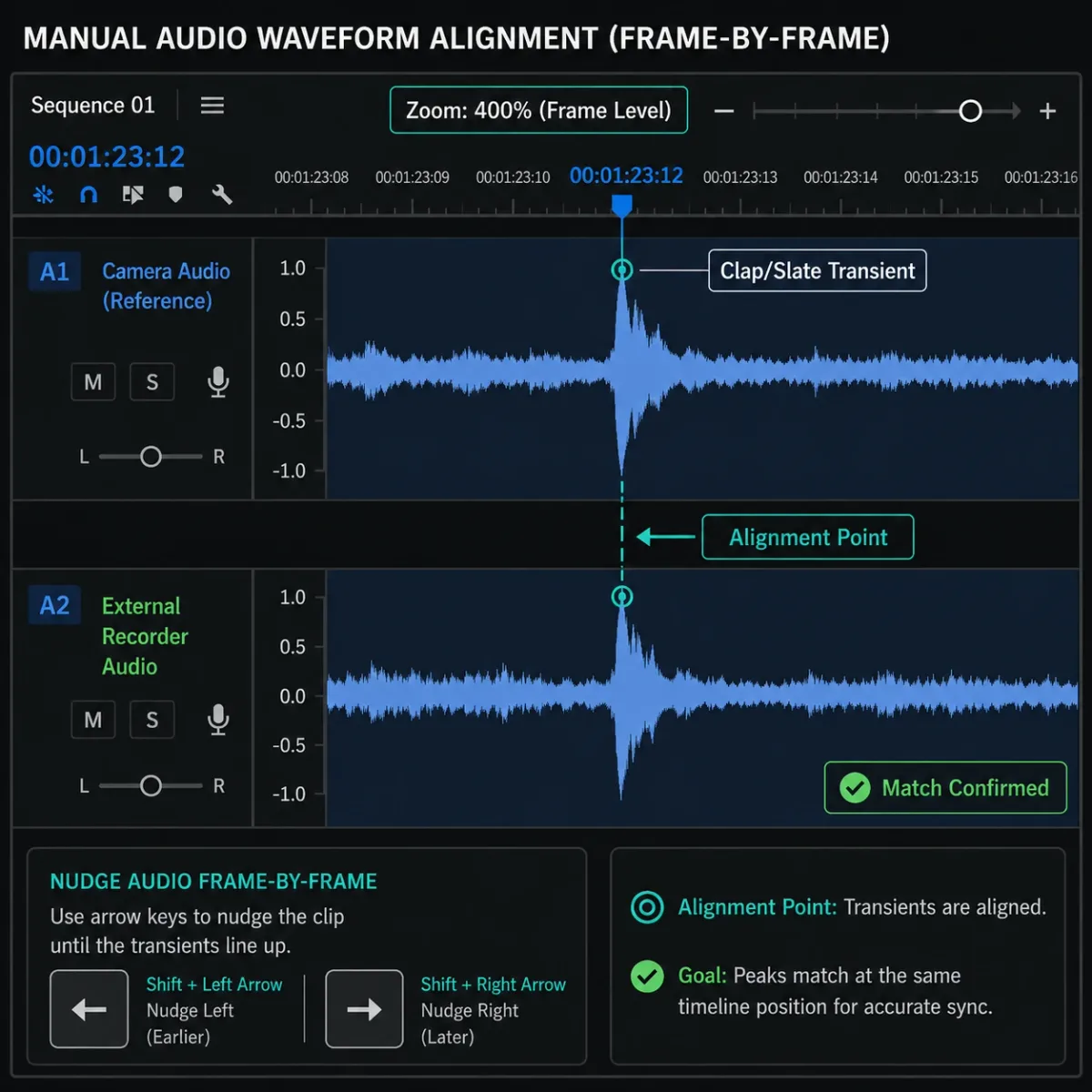
For manual waveform alignment, place both your video clip and external audio on the timeline on separate tracks. Zoom into the waveform view at maximum magnification. Look for a clearly visible transient, meaning a sharp spike in the waveform. A clap, door slam, or any percussive sound works perfectly. Visually align the transient peak of both waveforms. Use your left and right arrow keys to nudge frame by frame until the peaks line up precisely. Play back a section to verify sync by listening for phasing or echo between the two sources.
If your production uses timecode, this is even easier. Ensure your external recorder was jamsynced to your camera before the shoot. In Premiere, select both clips, go to Clip then Merge Clips, and choose Timecode as the synchronization method instead of Audio. This completely bypasses waveform analysis and uses the embedded timecode values to align clips. It is frame-accurate and never fails unless your timecode drifted during recording.
For editors dealing with large volumes of clips, consider PluralEyes by Red Giant as a temporary external solution. PluralEyes uses its own independent sync algorithm that is unaffected by Premiere's v26 engine changes. You load your clips into PluralEyes, it syncs everything using its own waveform analysis, and you export the synced timeline as an XML file that imports directly into Premiere. The cost is approximately 300 dollars for a perpetual license but it pays for itself in time savings if you regularly sync large multicam projects.
DaVinci Resolve's free version also includes audio-based synchronization for multicam projects. Some editors are temporarily syncing in Resolve and exporting XML to Premiere as a free workaround until Adobe patches the issue.
Fix Method 4: Downgrade to Premiere Pro v25 or Install Latest Hotfix
If you need reliable automated sync and cannot work around the issue, maintaining access to v25 is the safest approach.
To install a previous version through Creative Cloud, open the Creative Cloud desktop app, find Premiere Pro in your apps list, click the three dots menu next to it, select Other Versions, and install the latest v25.x release. You can keep v26 installed simultaneously. They coexist without conflict.
Open your project in v25 specifically for synchronization tasks. Merge your clips or create your multicam sequences in v25 where the legacy sync engine works reliably. Save the project. You can then open it in v26 for color grading, effects, and export if you prefer v26's other features.
One critical warning. If you have already saved your project in v26 format, it may not open in v25 due to forward-compatibility limitations. Always maintain a backup copy of your project file before opening in a newer version. I learned this the hard way when a v26 project refused to open in v25 and I had to recreate my timeline structure from scratch.
Regarding hotfixes, check for point updates regularly. Adobe typically addresses critical workflow bugs within one to three point releases spanning three to six months. Go to Help then Updates in Premiere Pro, or check Creative Cloud for available updates. Read the release notes specifically looking for audio synchronization or merge clips mentions. As of mid-2026, v26.0.1 addressed some media cache related sync issues but did not fully resolve the confidence threshold problem.
Fix Method 5: Advanced Pre-Processing for Persistent Edge Cases
For a minority of editors the standard fixes above do not fully resolve the issue. These advanced techniques address edge cases involving unusual file formats, very noisy audio, or extremely quiet reference recordings.
If standard procedures fail, try this optimization checklist:
- Normalize peak levels — Open both camera and external recorder audio in Audition, then normalize both files to -3 dB. This maximizes the waveform amplitude height and gives the engine more detail to work with. If you are not sure why peak normalization alone is often misleading, the gain-staging section in Audio Editing Hacks for Beginners explains why manual clip gain almost always beats the Normalize button.
- Apply a high-pass filter (HPF) — Apply an 80 Hz high-pass filter to both files to cut out low-frequency rumble, hum, and wind noise. This isolates the vocal frequencies and makes the waveforms much more comparable.
- Clean up background noise first — If one audio source is significantly noisier than the other, run a light AI noise reduction pass (50-70% intensity) on the noisier reference before comparing. For the exact moderation rule that prevents the cleaned file from sounding robotic, see the companion guide on How to Remove Background Noise Without Making Voice Robotic.
- Transcode variable frame rate (VFR) clips — If you are working with mobile or screen capture video, transcode to Constant Frame Rate (CFR) (e.g. 24 fps, 30 fps) in HandBrake before syncing. VFR causes timeline timing drift.
- Extract to single mono reference — Extract channel one from polyphonic multichannel WAV files (recorded on units like the Zoom F8/MixPre) and attempt synchronization against that single mono track.
Export both processed files as 48 kHz, 24-bit, uncompressed WAV. Do not use any lossy format. Import these processed versions into Premiere and attempt sync. The combination of matched levels, matched frequency content, and clean uncompressed format gives the v26 engine the best possible conditions for finding a match. For a full breakdown of why 48 kHz / 24-bit WAV is the correct editing format for modern NLEs, read 128kbps vs 320kbps vs WAV for YouTube, which covers container selection, sample-rate pairing, and the exact point where bitrate stops being a limiting factor.
The Hardest Version of This Problem: Multicam With a Poly WAV Reference
The multicam case is worth walking through on its own, because it is where the v26 behaviour bites hardest and where the obvious diagnosis is usually wrong. Picture the standard event setup: several camera bodies each recording their own internal audio, plus a field recorder capturing a lapel mic and a room mic. In earlier versions you could batch-sync all of the cameras against the recorder in one pass. After the update, every merge fails.
The instinct is to blame sample rate, and that instinct is usually wrong here, because event shooters tend to already run everything at 48 kHz. The two things that actually cause it are less obvious. The first is a media cache carrying peak files generated by the previous version, which the new matcher will happily read and then reject. The second is the reference file itself: field recorders often write a polyphonic WAV containing every channel in a single file, and asking the sync engine to extract a waveform from a six-channel poly WAV gives it far more ambiguity than it needs.
The fix is three steps and takes minutes rather than hours. Delete the media cache completely and let it regenerate. Then extract the single channel you actually want as the sync reference — normally the lapel mic — out of the poly WAV as a standalone mono file. Then run the merge against that mono file instead of the multichannel original.
The reason this works is worth understanding rather than memorising: you are not changing a Premiere setting, you are handing the matcher an unambiguous reference. That is the general principle behind almost every fix in this guide. When automated sync fails repeatedly on the same media, the answer is nearly always to simplify what you are asking it to match, not to try again harder.
Preventing Audio Sync Failures on Future Projects
Once you have fixed the immediate problem, implement these practices to avoid encountering it again on future projects.
Standardize all recording devices to 48 kHz sample rate before every shoot. Check your camera audio settings, your external recorder settings, and even your wireless microphone receiver settings. Every device in the chain should output 48 kHz. This eliminates the most common trigger for the stricter v26 validation.
Always record a clear sync reference at the start of every take. A sharp handclap or traditional slate provides a clear transient spike that even a struggling sync engine can match. This also gives you a reliable manual fallback if automated sync fails.
Clear your Premiere Pro media cache at least once per month. Set a calendar reminder. Stale cache data is one of the primary causes of intermittent sync behavior in v26.
Never update Premiere Pro in the middle of an active project. Finish your current edit, deliver to the client, and only then update. If you must update, test your sync workflow immediately with a few clips before committing to the new version for the full project.
Keep the previous Premiere Pro version installed as a fallback. The storage cost is negligible and having a working sync engine available instantly is worth it. You can always uninstall the old version once you have confirmed the new version works reliably for your workflow.
Configure your external audio recorder to output standard broadcast WAV format with a single stereo pair rather than polyphonic multichannel WAV. If you need multiple channels, record them as separate mono WAV files rather than one multichannel file. Premiere's v26 engine handles individual mono files more reliably than complex multichannel containers.
Key Takeaways and Summary
The Premiere Pro v26 Audio Synchronize Failure is a real and documented issue caused by Adobe's decision to replace the legacy waveform matching engine with a stricter, higher-threshold system. It is not user error and it is not limited to specific hardware or operating systems.
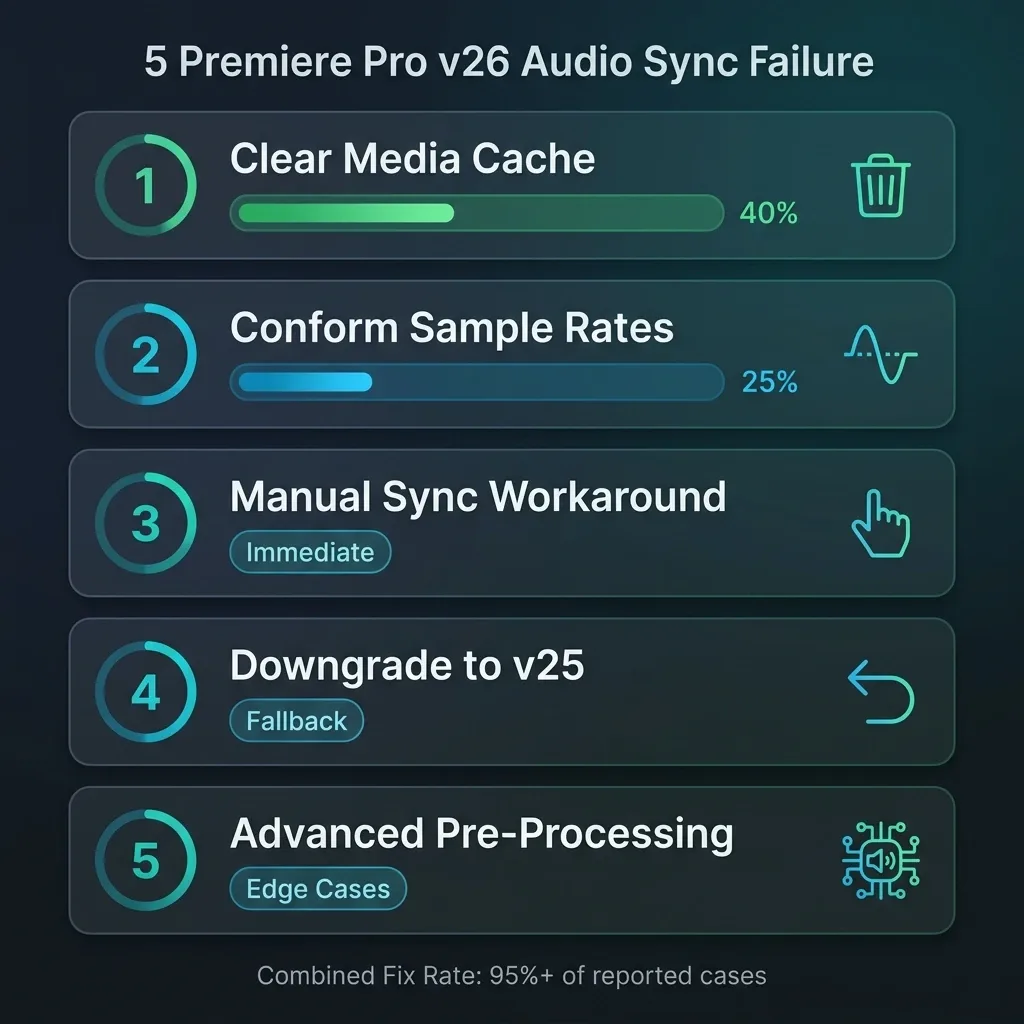
Your fix priority should follow this order. Start with clearing media cache completely because it is the fastest solution and resolves the largest share of cases. If that fails, conform all audio to matching 48 kHz sample rates which fixes another 25 percent. For immediate deadlines, use manual waveform alignment or PluralEyes to bypass the engine entirely. If you need reliable automated sync for ongoing work, maintain Premiere Pro v25 alongside v26 until patches fully resolve the issue. For persistent edge cases, pre-process audio in Audition with normalization and channel extraction.
The single most important preventive measure is standardizing all your recording devices to identical sample rates before you ever hit record. This one practice eliminates the most common trigger for the v26 sync engine's stricter validation requirements.
Your audio workflow should not be held hostage by a software update. Apply these fixes, adjust your export template once, and get back to the creative work that actually matters to your clients and audience. If you found a fix here that worked for your specific situation, share it with other editors in your community because this problem is widespread and many people are still struggling with it silently.
Further Reading: Editors Who Fixed This Bug Also Read
Once synchronization is clean, these are the next bottlenecks that show up in your final export and review process:
- Faster Than Auto-Ducking: Prep Podcast Audio Before Premiere Pro — if you are syncing interview or podcast audio, this guide shows exactly what pre-processing to run before you bring the mix into Premiere so that Premiere's auto-ducking produces musical, non-robotic level changes.
- Fixing Common Audio Problems in Video Editing — five-pillar framework for volume consistency, pacing, frequency carving, SFX, and AI cleanup in Premiere and other NLEs.
- Best Audio Format & Quality Settings for YouTube Shorts in 2026 — once synced and mixed, export with the exact codec, bitrate, sample rate, and loudness numbers that survive YouTube's Shorts pipeline.
- CapCut audio drift fix — if you also edit in CapCut and are seeing slow drift over long-form content, this is the variable-frame-rate diagnosis.
- Instagram Reels Metallic Sound Bug: Why WAV Files Sound Bad — if your exported Premiere mix sounds clean but comes out metallic on Reels, this guide covers the encoder-side reason.
- YouTube LUFS Normalization Explained — after syncing and mixing, the final step is landing on the correct -14 LUFS integrated loudness without crushing your dynamics.
Transparent Disclosure: The author is the Founder of Audio Forge Pro. Recommendations reflect genuine relevance to this topic. Core audio processing is free with no login required.
Responses
Join the community discussion. Sign in with Google to post a comment after the page finishes loading.