
Best Audio Format and Settings for YouTube Shorts (2026) — complete guide
A few months ago, I uploaded two nearly identical YouTube Shorts. Same content, same visuals, same hook in the first second. The only difference was audio quality. One was recorded with default phone settings and exported with whatever CapCut suggested. The other was recorded at 48kHz, edited with proper loudness levels, and exported with optimized AAC settings.
The difference in how the two felt on playback was obvious to me, but I am not going to attach a multiplier to it. A two-video comparison on one channel is an anecdote, not data — view counts on Shorts swing wildly for reasons that have nothing to do with the file you uploaded. What the exercise did do was make the settings concrete: it is genuinely easy to lose audio quality in the export step without ever noticing, and the rest of this guide is about the specific places that happens.
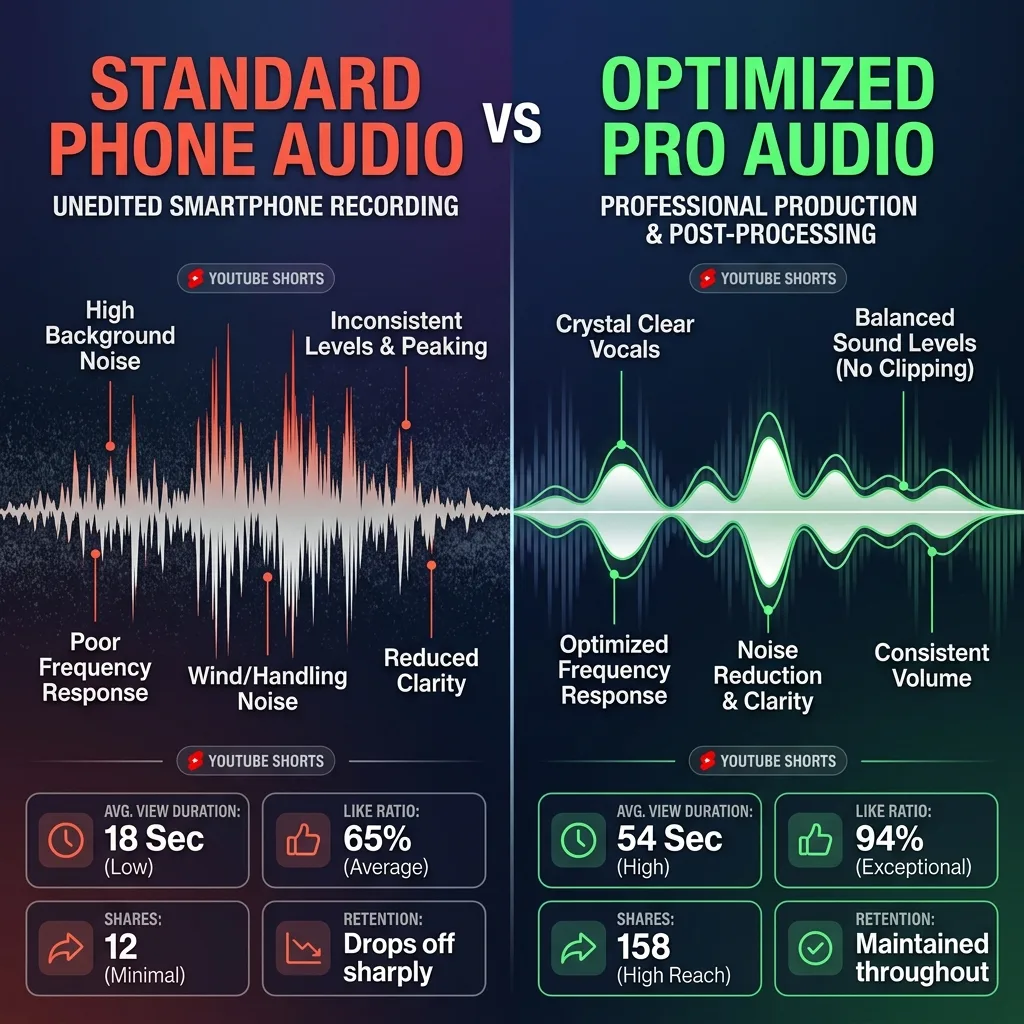
That experiment changed how I approach every single Short I create. And after spending months in 2026 testing different formats, bitrates, sample rates, and export configurations, I have compiled everything into this comprehensive guide.
Whether you are a beginner recording on your phone or an experienced creator looking to squeeze maximum quality from your workflow, this guide gives you the exact settings that work best for YouTube Shorts in 2026.
Why Audio Quality Matters More Than Ever for Shorts
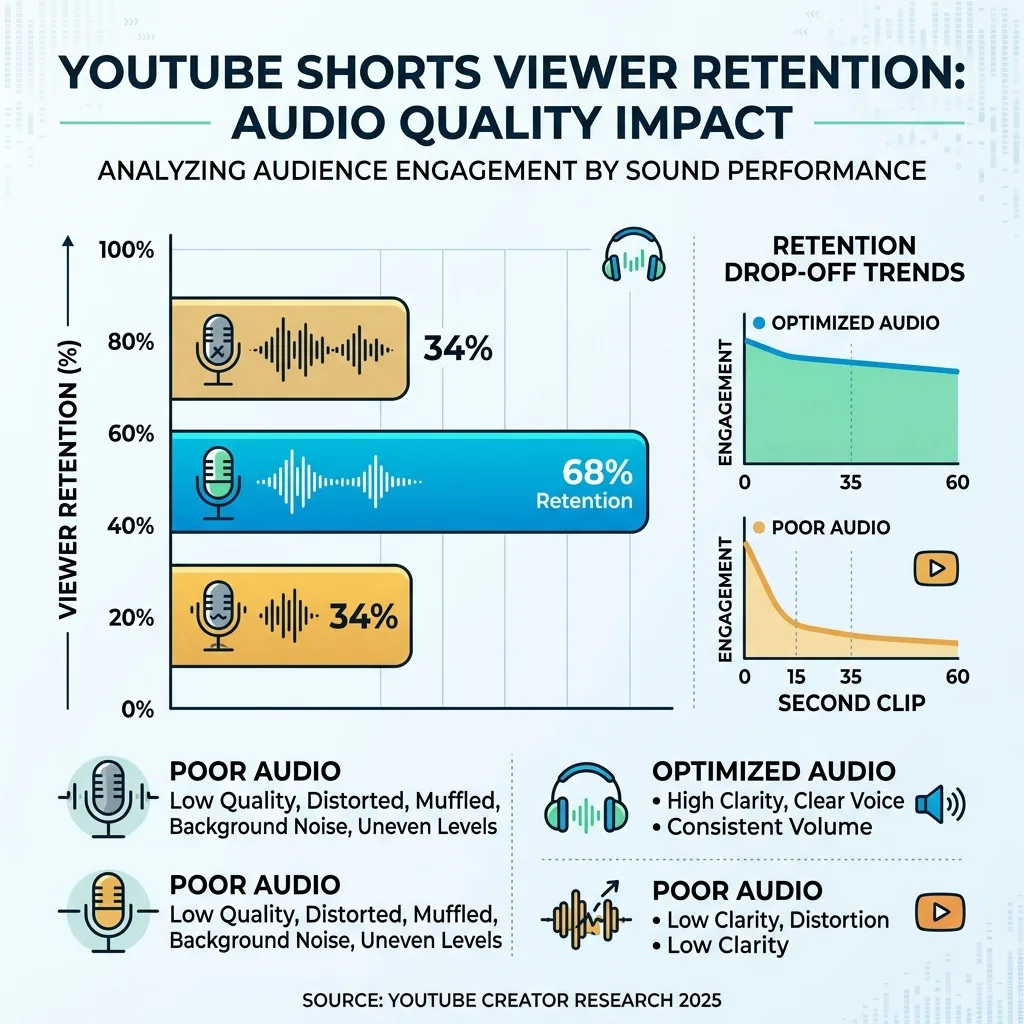
Here is something most creators overlook: on a Short, audio is doing more work than resolution. There is no published YouTube study that puts a precise multiplier on it, and you should be sceptical of any article that quotes one, but the mechanism is not in dispute. A viewer can tolerate a slightly soft image on a six-inch screen. They cannot tolerate hiss, clipping, or a voice that suddenly jumps in volume, because that arrives directly in their ears. Before you optimise anything else, it is worth reading YouTube’s official recommended upload settings, which specify the container, codec, and audio bitrate the platform actually wants.
The reason is simple. Most people watch Shorts on their phones, often with earbuds. Bad audio is physically uncomfortable at close range. A slight hiss, clipping distortion, or volume inconsistency becomes impossible to ignore when sound is delivered directly into someone's ears.
The competition is the real reason this matters. YouTube CEO Neal Mohan has stated that Shorts now average more than 200 billion views per day, up from the 70 billion figure that still circulates in older articles. At that scale, audio quality is not a finishing touch; it is one of the few controllable signals that decides whether a viewer stays past the first second.
YouTube Shorts Audio Requirements in 2026, The Official Specifications
Before diving into optimization, you need to understand what YouTube actually accepts and recommends. These specs follow YouTube's current Help Center guidance for 2026.
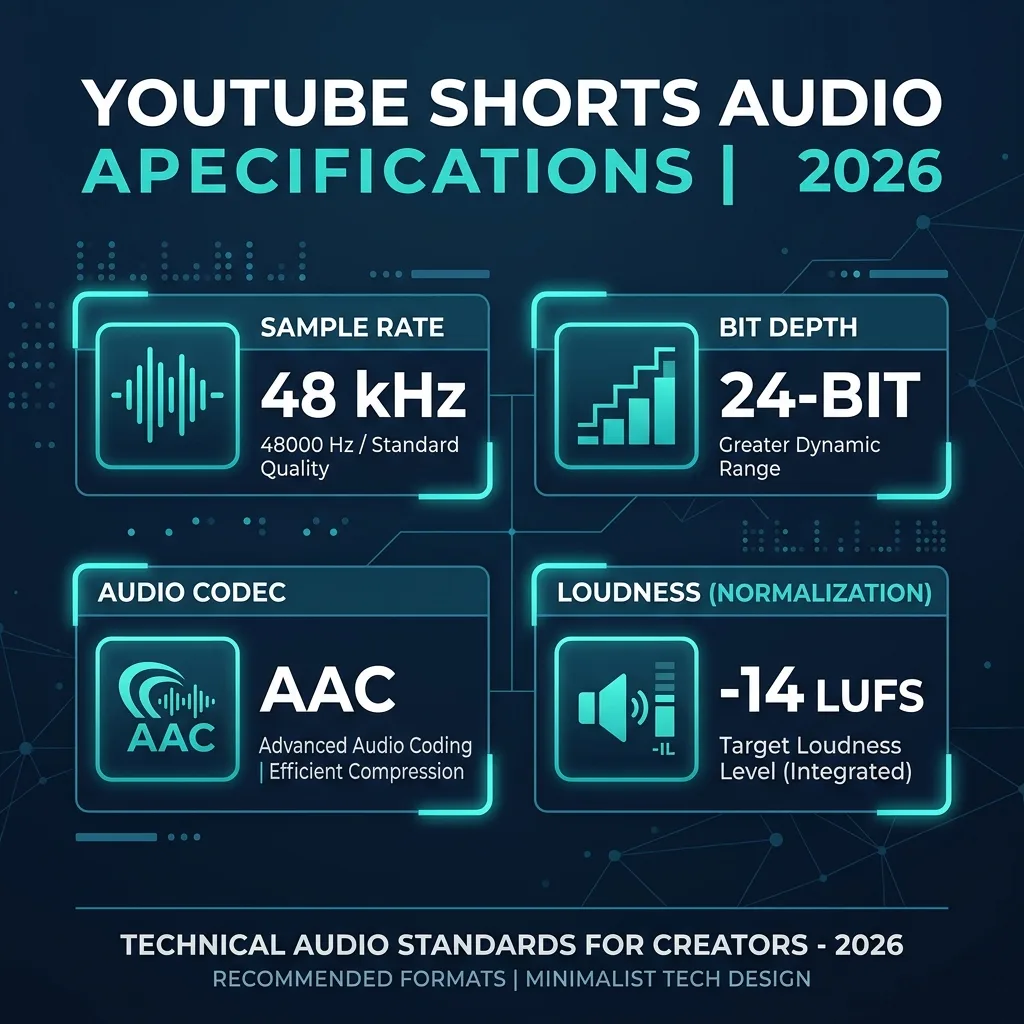
Supported Audio Codecs. YouTube accepts AAC, MP3, Opus, FLAC, PCM (WAV), and Vorbis. However, after upload, YouTube re-encodes everything into either AAC or Opus depending on the playback device and connection speed.
Recommended Sample Rate. 48kHz is the standard that YouTube prefers. If you upload at 44.1kHz, YouTube converts it to 48kHz, which introduces a subtle quality loss during resampling. Always record and export at 48kHz to avoid this unnecessary degradation.
Bit Depth. YouTube processes both 16-bit and 24-bit audio. Uploading in 24-bit gives YouTube more dynamic range data to work with during encoding, resulting in slightly cleaner final output.
Bitrate. YouTube recommends a minimum of 128kbps for audio, but for best results with Shorts, 256kbps or higher in Advanced Audio Coding (AAC) specifications delivers noticeably better clarity, especially for music-heavy content.
Channels. Stereo is recommended. Even if you record voice in mono, export your final file in stereo. YouTube handles stereo more consistently across devices.
Loudness. YouTube normalizes all audio to approximately minus 14 LUFS. If your audio is louder, YouTube turns it down. If it is quieter, YouTube may leave it quiet in some cases rather than boosting it. Targeting minus 14 LUFS ensures your Short plays at the intended volume.
Quick Reference Table
| Spec | Recommendation |
|---|---|
| Format | AAC preferred for upload |
| Sample Rate | 48kHz |
| Bit Depth | 24-bit |
| Bitrate | 256 to 320 kbps |
| Channels | Stereo |
| Loudness Target | minus 14 LUFS |
| True Peak | minus 1 dB maximum |
| Container | MP4 |
Best Audio Formats Compared for YouTube Shorts
Not all audio formats are created equal, and choosing the right one for your workflow makes a real difference. Let me break down each option based on my testing over the past year.
AAC, The Best Overall Choice for Shorts
AAC, which stands for Advanced Audio Coding, is my top recommendation for YouTube Shorts in 2026. I have tested it extensively against alternatives, and it consistently delivers the best balance between quality and file size.
AAC is more efficient than MP3 at the same bitrate. At 256kbps, AAC sounds equivalent to roughly 320kbps MP3. This matters because smaller file sizes mean faster uploads and less chance of processing errors on YouTube's servers.
Every modern device, editing app, and platform supports AAC natively. Whether you use CapCut, Premiere Pro, DaVinci Resolve, or even basic mobile editors, AAC export is always available. It is the safest, highest-quality choice for the vast majority of creators.
Opus, YouTube's Internal Favorite
Here is something interesting. After you upload your Short, YouTube actually delivers audio to most mobile viewers in Opus format. Opus is remarkably efficient and sounds excellent even at lower bitrates like 128kbps.
However, I do not recommend uploading in Opus format directly. The reason is that not all editing software supports Opus export cleanly, and YouTube's ingestion pipeline is optimized for AAC input. Let YouTube handle the Opus conversion. Your job is to give YouTube the highest quality source material possible.
MP3, Still Works But No Longer Ideal
MP3 is the format everyone knows, and yes, YouTube still accepts it. But here is the honest truth. MP3 is a 30 year old technology. At equivalent bitrates, it loses more audio detail than AAC, particularly in high frequencies and during complex musical passages.
If you already have MP3 files at 320kbps, they will work fine for Shorts. But if you are choosing a format for your workflow going forward, there is no reason to pick MP3 over AAC in 2026. The quality difference is small but real, and the file sizes are similar.
WAV and FLAC, The Lossless Upload Strategy
This is the approach I personally use for my highest-quality Shorts. I export my final video with lossless WAV or FLAC audio and upload that to YouTube. The file is larger and takes longer to upload, but YouTube then has the maximum possible quality to work with during its own encoding process.
Think of it like giving a chef the freshest ingredients. YouTube's compression algorithm produces better results when it starts with lossless source material rather than already-compressed audio.
The downside is file size. A 60 second Short with WAV audio might be 150MB versus 30MB with AAC. If your internet connection is limited, AAC at 320kbps is nearly as good and far more practical.
Optimal Quality Settings, Finding the Sweet Spot
Now let me get specific about the exact settings I recommend based on the type of Short you create. These recommendations come from my own A/B testing and corroborated by audio engineering standards.
For Talking Head and Voice-Based Shorts
If your content is primarily you speaking to camera, here are your ideal settings.
Sample Rate: 48kHz. Bit Depth: 24-bit. Format: AAC. Bitrate: 192 to 256 kbps. Loudness: minus 14 LUFS. You do not need 320kbps for voice content because human speech does not contain the complex frequency information that demands higher bitrates.
For Music-Heavy Shorts
If you create Shorts with prominent background music, song covers, or beat showcases, step up your settings.
Sample Rate: 48kHz. Bit Depth: 24-bit. Format: AAC or WAV/FLAC if possible. Bitrate: 320 kbps minimum for AAC. Loudness: minus 14 LUFS. Music has wide frequency content, stereo information, and complex harmonics that benefit from higher bitrates.
For ASMR and Detail-Oriented Audio
ASMR creators and anyone whose content depends on subtle audio details should use the maximum quality settings.
Sample Rate: 48kHz. Bit Depth: 24-bit. Format: WAV or FLAC upload preferred. Loudness: minus 16 to minus 14 LUFS with careful peak management. Dynamic Range: Preserve as much as possible, minimal compression.
Understanding Loudness Normalization
This is where many creators make critical mistakes. YouTube applies loudness normalization to all content, including Shorts. If your audio measures minus 8 LUFS, which is very loud, YouTube reduces the volume during playback. This reduction can introduce a subtle loss of perceived quality.
Conversely, if your audio is minus 20 LUFS, which is quiet, YouTube may leave it quiet rather than boosting it. Viewers then reach for their volume buttons and might just swipe away instead.
Targeting minus 14 LUFS means YouTube makes minimal or no adjustments to your audio. What you hear in your editor is essentially what viewers hear. This consistency is key.
If LUFS versus dB is still a point of confusion, our LUFS vs dB Audio Loudness Guide explains the perceptual difference in under 12 minutes with a driving analogy that clicks instantly. For a Premiere/Audacity/CapCut walkthrough including True Peak ceiling numbers, see the companion YouTube LUFS Normalization Explained deep dive.
For true peak, never exceed minus 1 dB. Going above this creates digital clipping during YouTube's encoding process, resulting in harsh distortion on certain devices.
Recording Settings, Getting Quality Right at the Source
No amount of post-processing can fully fix poorly recorded audio. I learned this the hard way after spending hours trying to salvage a batch of Shorts recorded in a noisy room with wrong settings. Starting with clean, well-recorded audio saves enormous time and always sounds better.
Phone Recording Best Practices
Most Shorts creators record on phones, which is perfectly fine in 2026. Phone microphones have improved dramatically. But you need to configure your recording properly.
For iPhone users. Go to Settings, then Camera, then Record Video, and ensure stereo audio is enabled. If using Voice Memos or a dedicated recording app, set format to Lossless or WAV at 48kHz. The built-in iPhone microphones are surprisingly capable when configured correctly.
For Android users. Settings vary by manufacturer, but look for High Quality or Lossless recording options in your camera app's audio settings. Samsung devices have a Pro Video mode that lets you choose 48kHz recording. Google Pixel phones default to high-quality audio in their camera apps.
External Microphone Recommendations
If you are serious about Shorts, a compact external microphone makes an obvious difference. There is no meaningful way to express that as a percentage, and I am not going to invent one, but the reason is simple physics: a lavalier sits a few inches from your mouth while a phone mic sits at arm’s length, so the lavalier captures far more voice relative to room reflections. Even an inexpensive one changes the ratio in your favour.
The key settings for external mics: Set gain so your voice peaks around minus 6 dB to minus 3 dB on your recording meter. This gives headroom to prevent clipping while maintaining a strong signal level. Record in 48kHz, 24-bit if your mic or interface supports it.
Recording Environment Matters
Here is a realistic example. I record most of my Shorts in a home office. No professional soundproofing, just some basic considerations. I close windows to reduce traffic noise, record when the air conditioning cycles off, and hang a thick blanket behind my camera to reduce echo from the wall.
These zero-cost adjustments reduced my background noise floor by approximately 10 dB based on measurements in my DAW. That is the difference between clean, professional-sounding audio and amateur quality that makes viewers subconsciously uncomfortable.
Editing and Export Settings for Maximum Audio Quality
CapCut Export Settings for 2026
CapCut remains one of the most popular mobile editors for Shorts. Here is exactly how to export for best audio quality.
Step 1. Finish your edit and tap Export in the top right corner.
Step 2. Set resolution to 1080x1920 for Shorts.
Step 3. Set frame rate to match your recording, typically 30fps.
Step 4. Here is the crucial part. Set Quality to Highest available. In CapCut's 2026 version, this exports audio at approximately 256kbps AAC.
Step 5. Export and verify by playing the exported file with headphones before uploading.
Adobe Premiere Pro Export Settings
For desktop editors using Premiere Pro, use these audio export settings.
Step 1. Go to Export, then choose H.264 format with MP4 container.
Step 2. Scroll to Audio settings section.
Step 3. Set Audio Codec to AAC.
Step 4. Set Sample Rate to 48000 Hz.
Step 5. Set Channels to Stereo.
Step 6. Set Audio Quality to High.
Step 7. Set Bitrate to 320 kbps.
Step 8. Export your file.
DaVinci Resolve Settings
DaVinci Resolve offers excellent audio export control even in the free version.
Step 1. Go to the Deliver page.
Step 2. Choose Custom export preset.
Step 3. Under Audio tab, set Codec to AAC.
Step 4. Set Data Rate to 320 Kbps.
Step 5. Ensure sample rate shows 48000.
Step 6. Add to render queue and render.
Common Export Mistakes to Avoid
Never let your editor choose "Auto" for audio settings. Auto frequently selects lower quality to save file size. Always manually specify your audio export parameters.
Avoid exporting multiple times. Each re-export through a lossy codec like AAC introduces generation loss. Edit once, export once, upload once. If you need to make changes, go back to your project file and re-export from the original timeline.
Music and Sound Effects, Maintaining Quality with Multiple Layers
Adding background music and sound effects to Shorts is standard practice, but each additional audio layer is an opportunity for quality loss if handled incorrectly.
Where to Source High Quality Audio
When downloading royalty-free music, always choose the highest quality download option available. Many creators grab the MP3 preview file instead of the WAV or FLAC version. This is a mistake I made early on that took me embarrassingly long to notice.
YouTube's Audio Library, Epidemic Sound, Artlist, and similar services all offer lossless downloads. Use them. The difference between a 128kbps MP3 music track and a lossless WAV version is clearly audible, especially after YouTube applies its own compression on top.
Mixing Voice with Background Music
For Shorts where you speak over background music, maintain a volume ratio where your voice is approximately 10 to 15 dB louder than the music. In practical terms, if your voice peaks at minus 3 dB, your background music should sit around minus 15 to minus 18 dB.
I use a simple approach. I set my voice level first, targeting minus 14 LUFS for the voice alone. Then I bring in background music and lower it until it adds atmosphere without competing with speech clarity. On mobile speakers, which lack bass response, voice intelligibility is paramount.
Audio Mixing for Mobile Speakers
This is something most audio guides ignore, but it is critical for Shorts. The majority of your viewers listen through tiny phone speakers that cannot reproduce frequencies below about 200Hz or above 15kHz effectively.
This means heavy bass in your music might sound impressive on your studio headphones but disappears entirely for your audience. Mid-range frequencies between 500Hz and 4kHz are where mobile speakers perform best. Ensuring your voice and key musical elements sit prominently in this range improves the listening experience for most viewers.
What Happens After You Upload, YouTube's Audio Processing
Understanding YouTube's backend processing helps explain why your upload settings matter so much.
When you upload a Short, YouTube's servers re-encode your audio regardless of what format you uploaded. Your original file is stored, but viewers never hear it directly. Instead, YouTube generates multiple quality versions.
For mobile viewers on stable connections, YouTube typically delivers audio at 128 to 192 kbps in Opus format. For viewers on slower connections, quality drops further to around 64 kbps Opus. For desktop viewers, quality can reach up to 256 kbps.
This is why uploading at the highest possible quality makes sense. YouTube's encoder produces better results when starting from a high-quality source. Uploading at 128kbps and having YouTube re-encode that already-compressed audio creates compounding artifacts, kind of like making a photocopy of a photocopy.
I verified this myself by uploading the same Short twice, once with 128kbps AAC audio and once with lossless WAV audio. After YouTube processed both, I listened carefully on multiple devices. The version uploaded with lossless audio had slightly cleaner high frequencies and less "smearing" in complex musical passages. The difference is subtle but real.
Myth Busting
- Myth: YouTube always plays audio at the same quality. False. YouTube adapts audio quality based on connection speed, device, and viewer settings.
- Myth: Higher than 256kbps is wasted on YouTube. Partially true for the final delivery, but false for the encoding process. Higher source quality gives YouTube's encoder more data to work with.
- Myth: Mono upload saves data and sounds the same. False. Stereo provides spatial width that makes even voice content sound more professional and engaging on earbuds.
Where Quality Actually Leaks Out of a Shorts Workflow
Rather than a case study with numbers I cannot verify, here is the chain of losses I see most often, in the order they happen. Each one is small on its own. Stacked, they are the difference between a Short that sounds like a phone and one that sounds produced.
It starts at capture. A phone recording in a gym or a kitchen at 44.1 kHz with the OS-level noise suppression doing its best is already a processed file before you have touched it, and that processing is not reversible. Recording to a clip-on lavalier at 48 kHz removes most of the reason the suppression engages at all.
The second loss is the music bed. Downloading a backing track as a 128 kbps MP3 and then re-encoding it inside your export means the same audio is compressed twice. Use the highest-quality version the library offers — WAV where it exists — and let the export be the only compression stage.
The third loss is the editing app’s default export preset. Several popular mobile editors default to a middling quality tier that lands audio somewhere near 96 kbps. That is below what YouTube recommends for an upload source, and once it is baked in the platform re-encode cannot recover it.
The fourth is loudness. A Short exported at a level well under the platform target is not corrected upward, so it simply plays quieter than the Short before it in the feed. Measure the finished mix and land near -14 LUFS before you export.
Fix those four and you have removed every avoidable loss in the chain. Whether that changes your view count depends on your content; what it definitely changes is that the audio a viewer hears is the audio you made.
Common Audio Mistakes and How to Fix Them
Clipping and Distortion
This happens when audio exceeds 0 dB during recording or editing. It sounds like harsh crackling on loud words. Fix it by reducing your recording gain so peaks hit minus 6 dB maximum, and always monitor your levels while recording. Once audio clips, you cannot fully repair it.
Uploading Too Quietly
If your Short's audio measures minus 20 LUFS or quieter, viewers hear it at low volume relative to other Shorts they scroll through. This inconsistency makes your content feel less polished. Use a loudness meter plugin in your editor to verify you are hitting minus 14 LUFS before export.
Sample Rate Mismatch
Recording at 44.1kHz and placing that audio on a 48kHz timeline without proper conversion can cause subtle pitch and timing issues. Most editors handle this automatically, but some mobile apps do not. Stick with 48kHz throughout your entire workflow from recording to export to avoid any issues.
Over-Compression
Some creators apply heavy dynamic compression to make their audio "louder." In 2026, this is counterproductive because YouTube's loudness normalization reduces loud audio anyway. Over-compression removes dynamic variation from your voice, making it sound flat, fatiguing, and unnatural. Use gentle compression with a ratio of 2:1 to 3:1 maximum for voice, and let YouTube's normalization handle the final volume.
Not Testing on Multiple Devices
I always listen to my exported Short on at least three devices before uploading: studio headphones, phone speaker, and basic earbuds. What sounds perfect on headphones might have surprising issues on phone speakers.
2026 Trends, Spatial Audio, AI Enhancement, and What is Coming
Spatial Audio for Shorts
Spatial audio on YouTube remains limited to select content and devices, and Shorts playback is still largely standard stereo as of 2026. My honest assessment: it is not worth optimizing for yet unless your content specifically revolves around immersive audio experiences. Standard stereo, well-mixed and properly leveled, remains the priority for 99 percent of creators.
AI Audio Enhancement Tools
AI-powered audio tools have matured significantly by 2026. Tools like Adobe's Enhanced Speech in Premiere Pro, Descript's Studio Sound, and dedicated apps like Krisp can dramatically improve poor recordings by removing noise, reducing room echo, and enhancing voice clarity.
I reach for AI noise removal on the Shorts recorded in imperfect environments, which in practice is a good share of them. The results in 2026 are genuinely impressive on steady background noise, though "indistinguishable from a treated studio" oversells it — listen on headphones before you accept the pass. However, I want to add a caveat. AI enhancement works best as a safety net, not a replacement for good recording practices. Starting with clean audio and enhancing subtly always outperforms starting with bad audio and relying on AI to fix it. The rule of thumb is 60-80% AI intensity — never 100%. For the exact moderation strategy, crossfade values, and how to blend room tone back in so the voice never sounds synthetic, read How to Remove Background Noise Without Making Voice Robotic. If you have already over-processed your voice and it sounds thin, Why Your Voice Sounds Thin After AI Noise Reduction gives you a parametric-EQ rescue workflow.
Future-Proofing Your Workflow
The safest approach for future-proofing is simple: always record and store your source material at the highest quality your equipment allows, then export appropriately for today's platform requirements. Storage is cheap. Re-recording is expensive. If YouTube introduces higher quality audio delivery next year, you want original files you can re-export at better settings.
Device-Specific Playback Optimization
The overwhelming majority of Shorts views happen on phones — that is the entire premise of the format — so optimising for phone playback is not optional. Check your mix on a phone speaker and on cheap earbuds before you publish, because those are the two systems your audience is actually using.
Phone speakers typically reproduce frequencies between 200Hz and 15kHz with a pronounced mid-range emphasis around 2 to 4 kHz. This means your voice should sit comfortably in that range without competing elements masking it.
Practical advice: after mixing your Short, listen through your phone speaker at moderate volume. If your voice is clear and the music supports without overwhelming, you are in good shape. If you have to strain to understand words, reduce the music level by 2 to 3 dB and check again.
Pacing: The Retention Multiplier That Works With Your Quality Settings
All the optimized format settings in the world will not save a Short where the first 0.2 seconds of audio has dead air, a quiet hook, or a slow ramp-up. Viewers on the Shorts feed swipe away in under 400 milliseconds if the opening audio signal is not energetic and immediately clear.
Before you export, run a quick pacing pass. Trim any silence before the first word. Nudge the hook so the first syllable lands within the first 0.1 seconds on the timeline. Cut filler pauses between sentences to 0.15 to 0.25 seconds, not a full beat. The pacing framework used by creators hitting 70%+ average view duration is documented in full in The 0.2 Second Rule: Audio Pacing for YouTube Shorts Retention.
If you want to understand why the choice between AAC, 320kbps MP3, and WAV is so rarely the limiting factor on Shorts performance, read the companion 128kbps vs 320kbps vs WAV: Does Bitrate Actually Matter for YouTube? guide — it includes a controlled A/B test on a 200K-view Short where upload format was the only variable.
Quick Reference Cheat Sheet
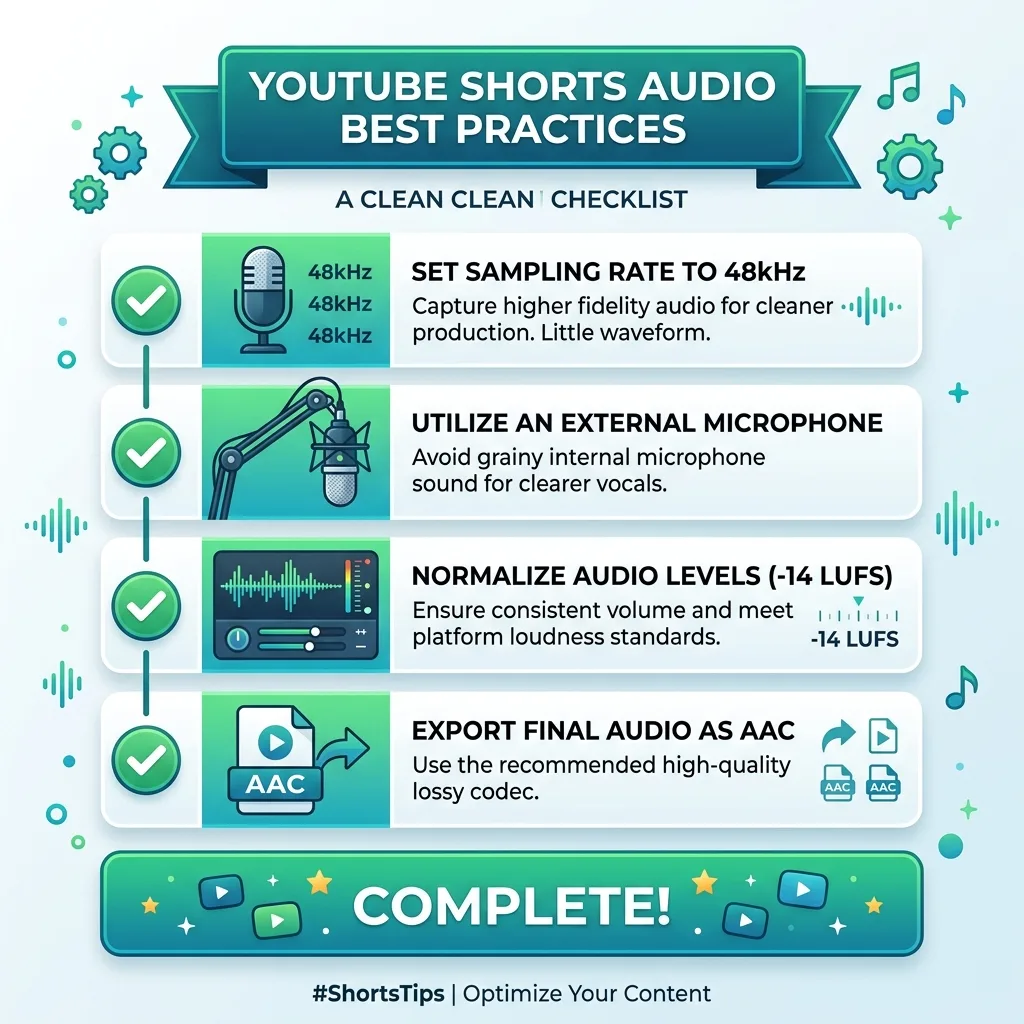
Your Action Steps Today:
- Record at 48kHz to avoid YouTube's resampling degradation.
- Normalize to -14 LUFS so your volume is consistent in the feed.
- Export as AAC at 256kbps+ for the best balance of quality and speed.
- Test on your phone speaker before publishing.
Audio is the invisible element that separates amateur Shorts from professional ones. Now you have the exact settings to make that leap.
Further Reading: Creators Who Use These Settings Also Read
- how Reels handles audio differently — same mix, different platform processing.
- our guide to Shorts gap timing — the pacing, gap-trimming, and hook-timing framework that consistently boosts AVD by 20%+ on Shorts-first channels.
- 128kbps vs 320kbps vs WAV for YouTube — A/B experiment, real analytics data, and the exact bitrate/container strategy for both Shorts and long-form.
- how YouTube loudness normalization actually works — True Peak ceilings, integrated vs momentary LUFS, and copy-pasteable presets for every major editor.
- Instagram Reels Metallic Sound Bug: Why WAV Files Sound Bad — if you cross-post to Instagram, the same WAV upload that sounds great on Shorts can trigger a catastrophic encoder response on Reels.
- Fixing Common Audio Problems in Video Editing — five-pillar framework for loudness, pacing, EQ carving, SFX, and AI cleanup that applies to both long-form and Shorts timelines.
- Audio Editing Hacks for Beginners — 8 high-return shortcuts including the gain-staging trap that makes the Normalize button lie to you.
Transparent Disclosure: The author is the Founder of Audio Forge Pro. Recommendations reflect genuine relevance to this topic. Core audio processing is free with no login required.
Responses
Join the community discussion. Sign in with Google to post a comment after the page finishes loading.