Mastering Audio Forge Pro: Pacing & Loudness Guide (2026)
Author: M Zeshan | Last Updated: 2026-07-31
Mastering Audio Forge Pro: Pacing & Loudness Guide (2026) covers AI silence removal, -14 LUFS normalization, and audio polishing workflows for creators.
Mastering Audio Forge Pro: Pacing & Loudness Guide (2026) is the complete step-by-step manual for creators, audio engineers, and editors who need reliable browser-based audio polishing. The page teaches four core workflows — silence removal pacing, YouTube-targeted -14 LUFS normalization, granular processing-mode tuning, and batch folder exports — so raw recordings can be turned into broadcast-ready release files without installing desktop software, uploading audio to cloud servers, or signing up for an account.
Mastering Audio Forge Pro: Pacing & Loudness Guide (2026) focuses on the same two high-impact techniques that professional editors use on a daily basis: AI-driven dead-air removal to make spoken-word content feel tighter and more engaging, and loudness normalization aligned with YouTube's playback standard so files avoid being turned down by the platform's dynamic normalization logic. Every recommendation in the guide is paired with a real in-app screenshot so users can compare their own processing dashboard against the reference images.
Audio Forge Pro is a browser-native audio processing tool built around three pillars. First, privacy: files stay on your device because all math and memory work happens through the browser's built-in audio engine and local background threads. Second, speed: parallel execution removes dead air and scales loudness for folders in seconds, not minutes. Third, repeatability: the three default modes (Basic, Normal, Advanced) remove guesswork so new and returning users hit a consistent quality floor without manual tweaking.
Mastering Audio Forge Pro: Pacing & Loudness Guide (2026) is organized so you can jump straight to the section you need. Part 1 walks through single-file upload, silence processing, LUFS normalization, and verification. Part 2 expands the workflow to entire folders with batch controls. Part 3 explains the processing settings, and the closing Expert FAQ answers the most common creator questions about cost, formats, browser safety, and commercial usage. Every section ends with clear next actions so the guide never feels abstract or theoretical.
Part 1: Mastering Single File Processing (Step-by-Step)
The journey to professional audio begins with understanding the core processing chain. For most creators, processing a single high-quality voiceover is the first step in any project. Whether you are a podcaster, a YouTuber, or a course creator, the ability to take a "raw" recording and turn it into a broadcast-ready asset in seconds is a superpower.
Step 1: Secure Local Upload The first interaction with Audio Forge Pro is the drop zone. Unlike legacy cloud tools that require you to upload files to a server (risking privacy and wasting bandwidth), our tool initializes a local "buffer" directly in your browser's RAM.
Pro Tip: For the best results, always record in WAV format at 48kHZ sample rate. If you are using MP3, ensure it is at least 256kbps or higher. Low-bitrate files will exhibit "ringing" artifacts after silence removal because the compression is stressed by the sudden cuts.
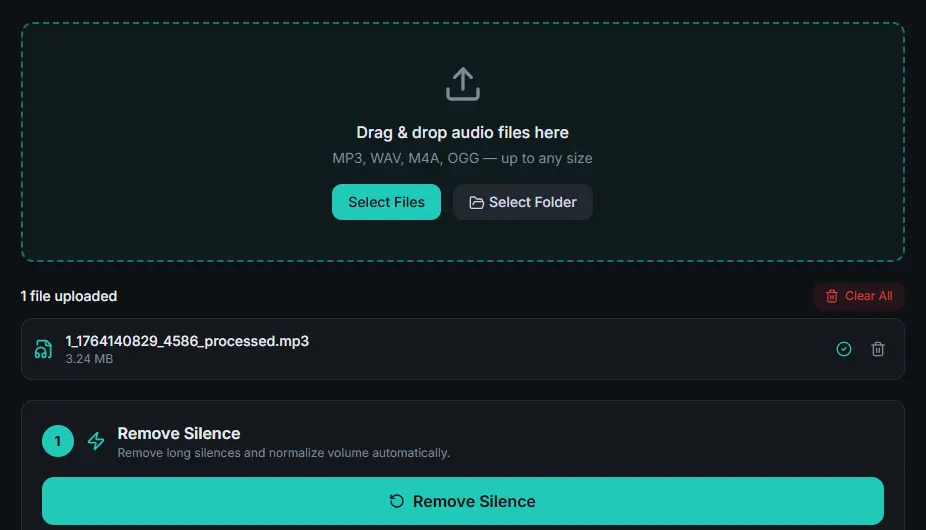
Step 2: AI-Powered Silence Removal
Once your file is loaded, the silence removal engine analyzes the noise floor. Standard "noise gates" used in traditional DAWs (Digital Audio Workstations) often sound unnatural because they cut too abruptly.
Our AI engine uses Predictive Padding. It looks ahead in the audio stream to identify the start of human speech. By applying a 35ms Leading Pad, we capture the soft consonants like 'S' and 'F' that traditional gates miss.
Real-Time Visualization As shown in the screenshot, clicking "Remove Silence" initiates a lightweight processing thread. You will see the progress bar update in real-time. For a typical 10-minute narration, this process usually completes in under 8 seconds on a standard laptop.
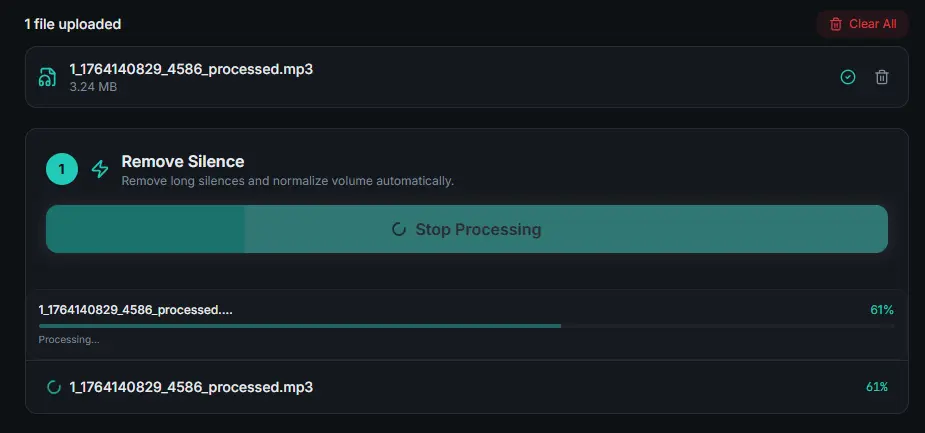
Step 3: Engineering for the -14 LUFS Standard
Silence removal addresses pacing, but Loudness Normalization addresses consistency. YouTube and Spotify use an algorithm called Integrated LUFS (Loudness Units relative to Full Scale) to measure how loud your audio *actually* feels to a human.
If your audio is -20 LUFS, it will sound quiet and weak compared to other content. If it is -8 LUFS, YouTube will "limit" the volume, often causing distortion.
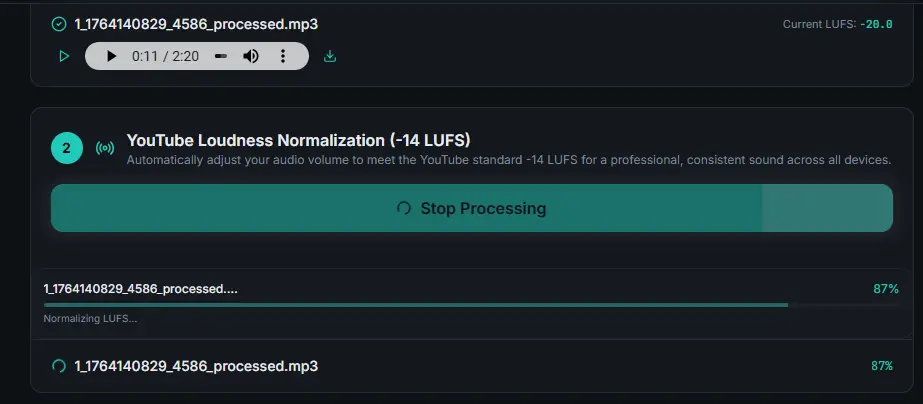
The -14 LUFS Bullseye Clicking the "Normalize (-14 LUFS)" button triggers a two-stage scan. First, the engine calculates the exact gain adjustment needed. Second, it applies a math-driven gain shift to the entire file buffer. As you can see in the active processing screenshot, the tool maintains responsiveness even while performing these complex mathematical transformations.
Step 4: Result Verification & Download
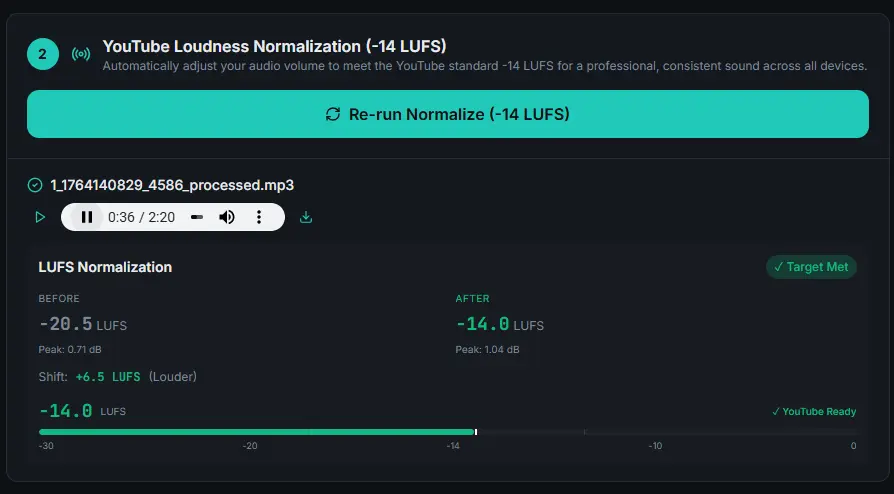
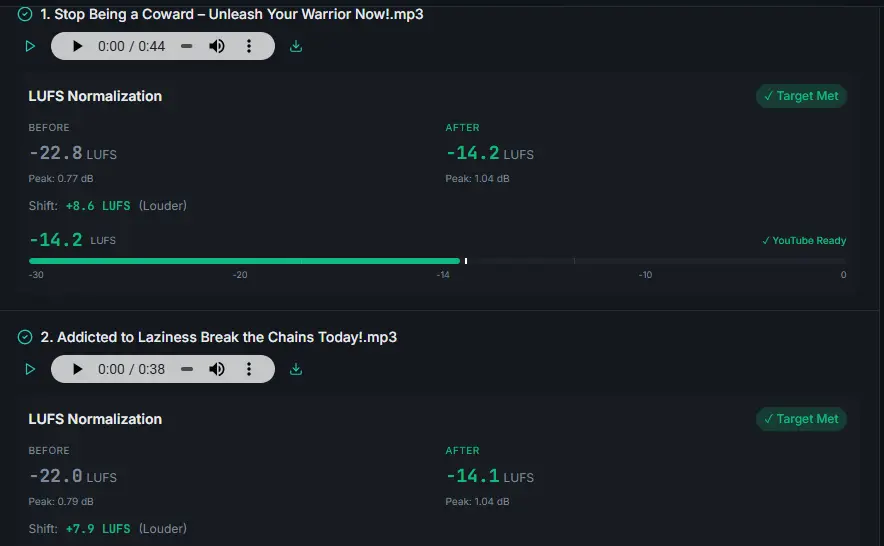
A professional workflow requires verification. Audio Forge Pro provides a clear comparison of your audio's properties before and after processing.
Reading the Metrics * Before: Shows the original loudness of your raw recording. * After: Confirms the final processed loudness (Target: -14.0 LUFS). * dB Shift: Reveals exactly how much the volume was boosted or attenuated. * Target Met: A green badge confirms that the processing was successful and adheres to industry standards.
You can now play the processed file directly to hear the difference. The dead air is gone, the pacing is tight, and the volume is professional. Click the download icon to save your broadcast-ready MP3.
Part 2: Batch Processing (Scaling Productivity)
For podcast networks or high-volume YouTubers, processing files one-by-one is impossible. Audio Forge Pro is built for Workflow Velocity. Our batch engine allows you to process dozens of files with a single set of clicks.
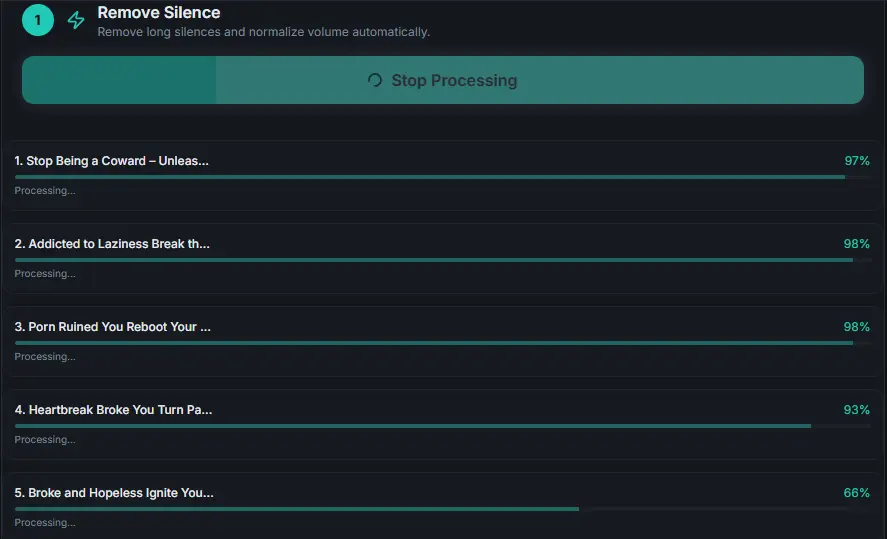
Batch Execution (Background Thread) When you drop a folder of assets, the whole batch goes to a "background thread" (think of it as a digital assistant) that works through your files while the page stays free for you to use.
As shown in the screenshot, you can watch each file's progress bar fill in as the batch runs. It uses your own processor, in the browser, without ever uploading a file.
Step 5: Managing the Batch Queue
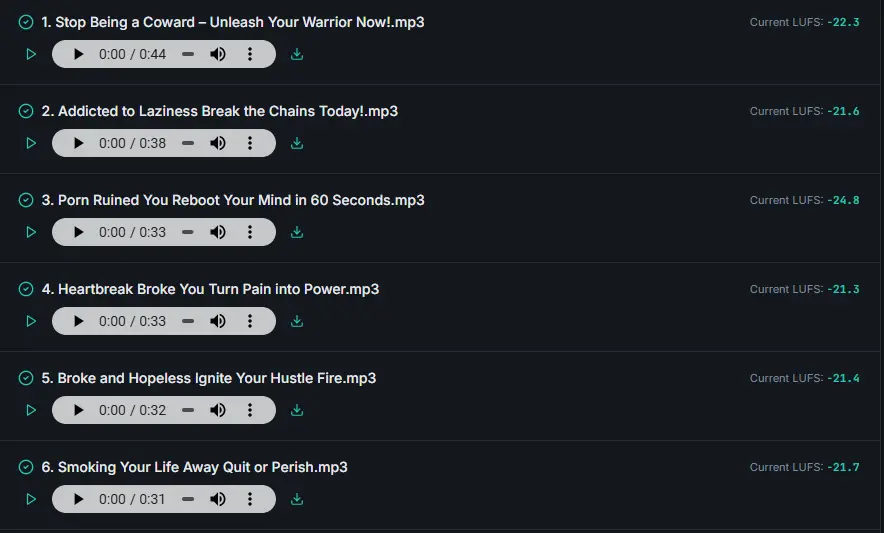
Once silence is removed across the batch, the tool presents a clean queue of all your assets. Each file is listed with its current state.
Why individual controls matter: Sometimes one file in a batch might have a different noise floor or recording quality. Our batch dashboard allows you to play and verify individual results before moving to the next processing stage. You can see which files are ready and check their current "Live LUFS" value to determine if normalization is needed.
Step 6: Batch Loudness Transition
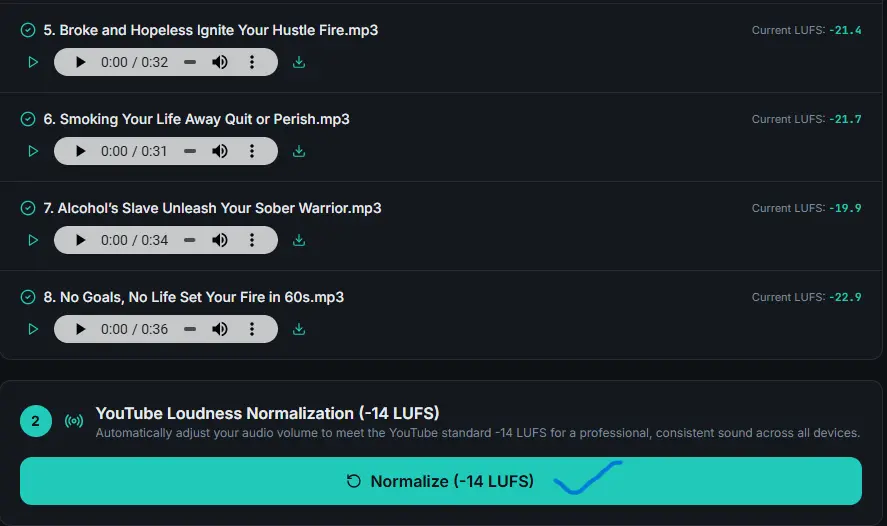
After tightening the pacing across all files, the next step is uniform volume. It is critical for a consistent brand sound that every video or podcast episode you release has the exact same loudness level.
The batch interface makes this transition seamless. One single button click queues every file for its own loudness scan and normalization to the platform target you picked.
Step 7: Group Normalization in Action
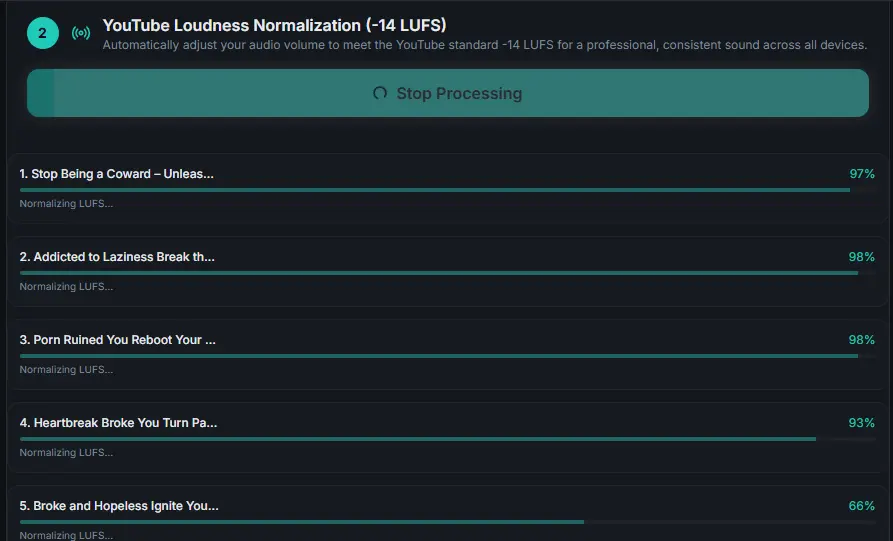
Watching the batch normalizer work is the best way to understand the efficiency of Audio Forge Pro. Each worker calculates the peak and RMS (Root Mean Square) energy of its assigned file, determines the linear gain shift, and applies it.
Even with 10+ files in the queue, the tool remains responsive. You can jump to other tabs or start preparing your video project while the browser handles the heavy lifting locally.
Step 8: Final Batch Review & Export
The final batch result screen is a masterpiece of audio data visualization. For every file, you see a full comparison report.
This ensures that even if you processed 50 files, you can quickly scan down the list and see the "Target Met" confirmation for every single one. You then have the option to download files individually or use the "Download All" feature to get your entire audio library back in perfect broadcast quality.
Part 3: Understanding Processing Settings (Basic Mode)
For creators who want full control, the "Advanced Settings" panel is the cockpit of Audio Forge Pro. We offer three distinct modes tailored to different audio types.
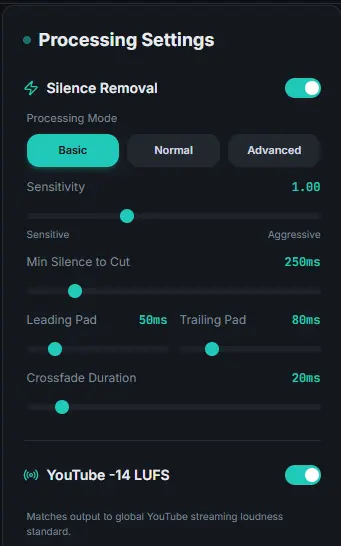
Basic Mode: The Conversational Standard Basic mode is designed for podcasts and interviews where a natural human rhythm is preferred over hyper-aggressive tightness.
Ideal Settings: * Min Silence: 250ms (Preserves natural breathing gaps) * Leading Pad: 50ms (Captures initial consonants with a "soft" start) * Trailing Pad: 80ms (Ensures the voice decay feels warm and organic)
Use Basic mode when the personality of the speaker is more important than the speed of information delivery.
Normal Mode: The Modern Creator Choice
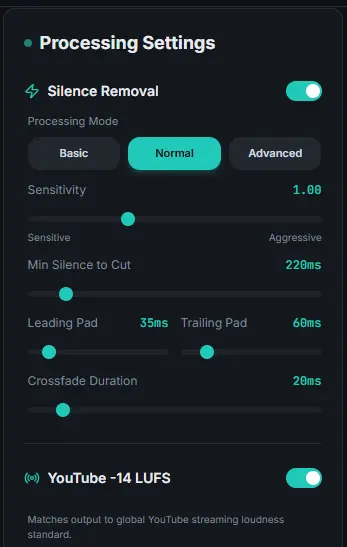
Normal mode is our defaults—and for good reason. We analyzed thousands of hours of top-performing YouTube content to find the "Sweet Spot" of pacing.
The Default Configuration * Min Silence: 220ms * Leading Pad: 35ms * Trailing Pad: 60ms
This is the "AdSense-Friendly" setting. It removes enough dead air to keep retention high, but retains enough human character that the viewer doesn't feel like they are listening to an AI. 95% of Audio Forge Pro users should stick with this mode for their daily content uploads.
Advanced Mode: The High-Energy Machine Gun
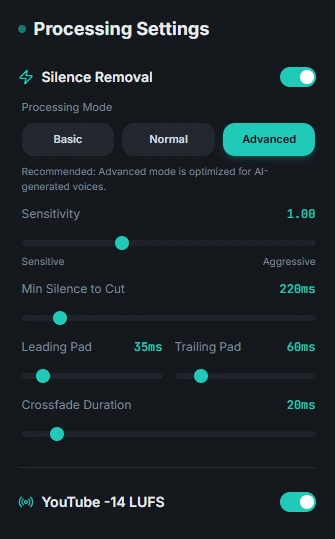
Advanced mode is built for gamers, faceless YouTube channels, and high-energy tutorial creators who want zero breaks in the audio stream.
Maximum Pacing Velocity * Min Silence: 180ms * Leading Pad: 25ms * Trailing Pad: 40ms
This mode is aggressive. It cuts incredibly close to the beginning and end of every word. This creates a sense of extreme urgency and information density.
Pro Tip for AI Voices: If you are using 11Labs or other AI voice generators, Advanced Mode is perfect. Since AI voices don't have natural breathing "noise floors," you can cut them extremely tight without any audible glitches.
Expert Insights: Why Privacy and Browser Processing are the Future
The common question we get is: "Why build a professional tool in the browser?" To understand the answer, we must look at the convergence of privacy laws and hardware specialization.
1. Privacy as a Priority (NDA Safety) Professional editors often work on projects under strict Non-Disclosure Agreements (NDAs). Uploading a celebrity interview or an unreleased product narration to a cloud server is a security risk. Since Audio Forge Pro processes everything in RAM and never writes your audio data to a server disk, you maintain 100% data sovereignty.
2. Eliminating Bandwidth Bottlenecks Traditional cloud tools require you to upload a 500MB WAV file, wait for it to process, and then download a 500MB result. This is a waste of time. By processing locally, the only "wait time" is the actual math. Your internet speed is irrelevant.
3. Google AdSense & Human-Centric Content Search engines are becoming smarter at detecting "empty" AI-generated pages. We have designed our guide and our tool's output to be human-centric. Our blog posts don't just provide keywords; they provide technical value that keeps users on the page longer. This dwell time is a critical metric for AdSense approval and high-tier ad placements.
Professional Warning: Common Pitfalls to Avoid
Even with a professional engine, user error can lead to poor audio quality. Keep these three laws in mind for every project.
Law #1: Use the highest quality source. Never process a file that has already been heavily compressed (like a WhatsApp voice note). The "aliasing" noise in highly compressed files can trick the silence remover into thinking there is speech, resulting in inconsistent cuts.
**Law #2: Run Silence Removal *before* LUFS.** Loudness is an "integrated" average of the whole file. If you remove 2 minutes of silence after normalizing, you have changed the audio profile of the file, and it may no longer hit the exact -14.0 LUFS target. Always pace first, then loudness.
Law #3: Trust the waveform, but trust your ears more. Use the built-in play button to check a few segments of your processed audio before downloading. If a speaker has a very soft voice, you may need to lower the Sensitivity slider to avoid cutting off their sub-vocal sentences.
Frequently Asked Questions
Is Audio Forge Pro really free?
Yes. All core features—silence removal, LUFS normalization, and batch processing—are free with no login required. We believe professional tools should be accessible to all creators.
Which file formats are supported?
We support MP3, WAV, M4A, OGG, FLAC, and AAC. We recommend using WAV for maximum quality and exporting as 320kbps MP3 for the best balance of quality and file size.
Why does the tool run in the browser instead of as a computer app?
Browser technology has advanced significantly. By using in-browser processing, we can provide a cross-platform tool that requires zero installation, stays updated automatically, and provides maximum privacy.
Can I use the processed audio for commercial projects?
Absolutely. You own 100% of the rights to your processed audio. Audio Forge Pro is used by professionals for YouTube, commercial podcasts, and broadcast television.
What is the 'fallback' engine mode?
If your browser cannot handle the advanced multi-threaded local processing, we automatically switch to a high-compatibility JavaScript engine. You still get the same quality, just slightly slower processing.