
TikTok No Sound or Audio Glitch? Here's the Fix — complete guide
When a TikTok video plays with sound on your phone but uploads silently, check three paths separately: app/device permissions, a copyright or platform notice, and the exported audio stream. Re-exporting a standard stereo AAC-LC track at 44.1 or 48 kHz can help when the source has an unusual channel layout, but it is not the only possible cause.
When a video plays locally but arrives silent, check the copyright notice, app/device permissions, and the exported audio stream separately. A standard AAC-LC stereo export can help with unusual source layouts, but it is not a universal fix for every TikTok upload problem.
Use a short test upload before re-encoding a full project. The steps below are troubleshooting options, not a guarantee that TikTok will preserve a particular codec or feature after a platform update.
If the export is playing in one ear or the stereo layout looks wrong, fix one-ear or muted audio channels in the browser before you re-upload.
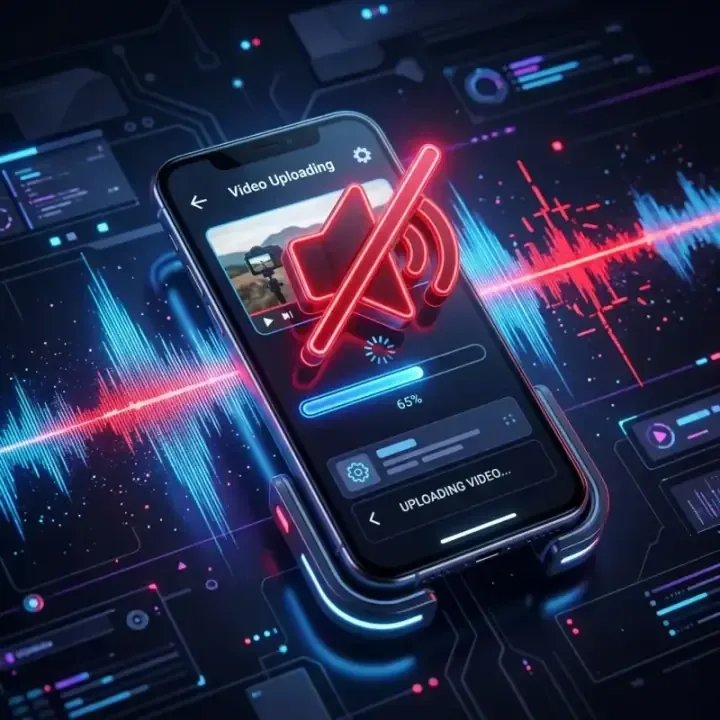
Why Sound Drives Platform Engagement and Algorithmic Retention
Sound is not just a secondary element on short-form platforms—it is the primary driver of viewer retention. TikTok's recommendation engine prioritizes videos that maintain high completion rates and early rewatches.
When a technical audio failure causes a video to upload silent, creators are forced to take down the post, re-encode, and re-upload. This duplicate publishing behavior signals spam to security filters, dilutes initial engagement, and drops the video's search visibility.
There is no published figure for how much reach a silent upload costs, and you should distrust any article that invents one. What is not in doubt is the mechanism: a Short-form clip that opens with no audio gives the viewer nothing to hold on to in the first second, which is exactly the window where the swipe decision happens. Peer-reviewed work supports the direction of that effect — a 2022 Texas Tech study by Wilkinson found degraded audio measurably reduced retention and perceived credibility.
If you want to understand how platform-level audio processing interacts with your device's signal chain, refer to our detailed YouTube Shorts Audio Retention Guide or our complete walkthrough on Mobile Audio Optimization Guide for broader content platforms.
1. Under the Hood: How TikTok and Mobile OSes Intersect
The fundamental cause of the TikTok no sound glitch lies at the intersection of mobile operating system security and TikTok's ingestion pipeline. When you upload a video, TikTok's backend servers run a parsing filter to check for three critical components: audio containers, codecs, and channel layouts.
Major mobile system updates frequently introduce silent, sweeping changes to privacy controls, background process sandboxing, and peripheral hardware routing protocols.
Container vs. Codec Profiles
Many creators confuse the file container (like .mp4 or .mov) with the actual audio codec compressed inside it. TikTok accepts MP4 and MOV containers, but it is highly selective about the audio stream codec profile. The platform natively expects AAC-LC (Low Complexity) at 44.1 kHz or 48 kHz.
If a mobile update causes your default camera app to export high-bitrate Linear PCM, uncommon AAC profiles (like AAC-LD or AAC-HE), or multi-channel spatial tracks, TikTok's ingestion engine may transcode the unrecognized audio stream into complete silence.
Channel Layout and Multi-Channel Rejection
TikTok and other social media apps expect standard 2-channel joint stereo or 1-channel mono tracks. Modern high-end smartphones (such as the iPhone 15 Pro or Samsung Galaxy S24 Ultra) record audio in spatial stereo, surround configurations, or discrete multi-microphone layouts (e.g., separating built-in mic, lavalier, and ambient lines).
If your video metadata flags the audio track as 5.1 surround sound or a 4-channel layout, the platform's automated system will often discard the alternate tracks entirely rather than attempting to downmix them, rendering your video completely muted.
Stricter Sandbox Permissions
iOS 16+ and Android 13+ introduced granular permissions for mic-access, hardware accessory communication, and background audio routing. When your phone updates, existing security tokens can expire or reset.
If the TikTok app loses direct access to your phone's primary audio driver handshake or secondary microphone lines, it will upload a file with an empty audio track, even if the raw video file in your local library plays perfectly.
2. The Algorithmic Content ID and Codec Filter Engine
Before a video is published globally, TikTok's server farm processes the upload through an automated filtering pipeline. This pipeline operates in two parallel tracks: the Technical Codec Check and the Content ID Copyright Match.
It is critical to distinguish between these two processes to diagnose your issue correctly:
- Technical Codec Filter: If the audio track contains multi-channel layouts, corrupt audio header flags, or an unsupported sample rate (such as 88.2 kHz or 96 kHz), the filter rejects the audio stream entirely. The video publishes with no audio, but no warning or copyright notification is given.
- Content ID Copyright Filter: If the audio track is technically perfect but contains unlicensed commercial music, the system mutes the track post-upload and sends a push notification stating 'Original sound removed due to copyright infringement' or 'This sound is not licensed for commercial use.'
If your upload has complete silence and you did not receive a copyright warning, you are dealing with a technical codec or permission rejection, not a content violation.
3. Step 1: Resetting App and OS Permissions (Fastest Fix)
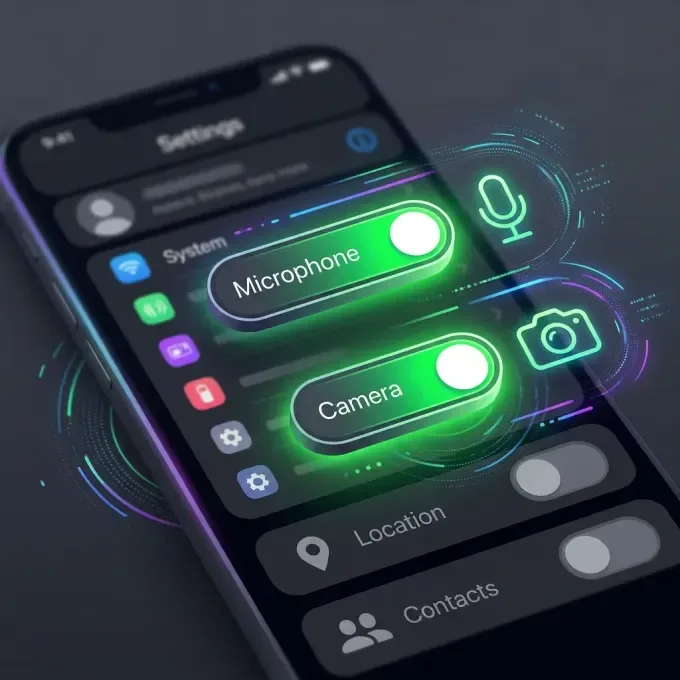
The first line of defense is resetting your operating system's hardware routing permissions to force a standard stereo stream handshake. This step fixes the most common cause — a permission reset after an OS update — before you touch any audio encoding at all.
Step-by-Step iOS Reset Protocol
- Navigate to Settings → TikTok on your iOS device.
- Toggle the Microphone switch off, wait 10 seconds, and toggle it back on.
- Go to Settings → Privacy & Security → Microphone and verify TikTok is globally authorized.
- If you are using an external mic (like a USB-C wireless receiver or a Lightning audio interface), go to Settings → General → About. Scroll to the bottom and ensure your accessory's name is listed, showing a correct hardware connection. Enable accessory communication permissions if prompted.
Step-by-Step Android Permissions Reset
- Open Settings → Apps → TikTok > Permissions.
- Tap Microphone and choose 'Don't Allow', then change it back to 'Allow only while using the app'.
- Navigate to Advanced → Modify system settings and confirm the toggle is enabled.
- For creators using USB-C audio peripherals, go to Settings → Developer Options (enable by tapping Build Number 7 times in 'About Phone' if hidden). Scroll down and verify that 'Disable USB audio routing' is turned OFF. If it is turned on, the OS will block the app from reading your external microphone's audio stream.
The Quick Workaround: Forced Native downmixing
If TikTok's uploader still blocks your original audio, you can bypass the OS channel block using a helper recording application:
- Open your phone's native voice recorder or a free editor (like Voice Memos on iOS or Voice Recorder on Android).
- Record a quick 10-second test audio clip.
- Use the system's Share function: tap Share → TikTok > Share to feed.
- This forces the OS to render a standard, flattened single-stream stereo AAC or PCM file. If this test video uploads with sound, it confirms your phone's default camera application is producing an unreadable multi-channel metadata container.
4. Step 2: Converting Multi-Channel Feeds to Standard Joint Stereo
When mobile updates alter your video file's metadata layout, manual conversion to standard Joint Stereo is the most reliable, professional fix.

Quick Mobile App Conversion (On the Go)
If you need a fast mobile solution without a computer, use a dedicated audio editor app like WaveEditor (Android) or Hokusai Audio Editor (iOS):
- Import the video clip from your photo gallery.
- Select the audio track and choose Export or Save As.
- Manually select the following encoding parameters:
- Codec: AAC-LC (Low Complexity)
- Sample Rate: 44.1 kHz or 48.0 kHz
- Channels: Stereo (Joint Stereo) or Mono
- Bitrate: 192 kbps (ideal for high-fidelity voice and background music)
- Combine the exported audio back with your video inside a mobile editor like CapCut or Premiere Rush, and upload the new clip.
Desktop Conversion via FFmpeg (Highly Recommended)
For absolute reliability, nothing beats FFmpeg. It is a free, command-line utility that converts audio streams deterministically without re-encoding the video track (meaning zero loss in video quality and instant processing).
Connect your device to your computer, transfer the problematic file, and run the following terminal command:
ffmpeg -i input.mp4 -c:v copy -c:a aac -b:a 192k -ac 2 -ar 48000 output.mp4
Technical Flag Breakdown
-i input.mp4: Specifies your source video file.-c:v copy: Copies the video stream exactly as-is without re-encoding, preserving 100% of visual quality.-c:a aac: Encodes the audio stream using the widely accepted AAC codec.-b:a 192k: Sets the audio bitrate to a pristine 192 kbps.-ac 2: Forces the channel layout down to 2 channels (Joint Stereo), eliminating unsupported spatial, 5.1, or multi-mic layouts.-ar 48000: Standardizes the sample rate to 48 kHz.
To verify that your output file has been successfully downmixed, run ffprobe in your terminal:
ffprobe -show_streams output.mp4
Look for the audio stream details; it should now display codec_name=aac and channels=2.
Advanced Multi-Track Audio Mapping
If your video contains multiple distinct audio tracks (such as track 1 for your camera's microphone and track 2 for a secondary lapel system), standard converters might only pick up the first track. Use FFmpeg's mapping flags to select your primary microphone track and downmix it:
ffmpeg -i input.mov -map 0:v -map 0:a:1 -c:v copy -c:a aac -ac 2 output.mp4
Here, -map 0:a:1 instructs FFmpeg to target the second audio track (indexing starts at 0) and bundle it cleanly into a stereo stream alongside the video.
For creators facing general rendering issues, you can review our complete guide on Fixing Common Audio Problems in Video Editing or check out our master article on Best Audio Format Quality Settings for YouTube Shorts to maintain platform compliance.
5. Step 3: Clearing In-App Cache and Resetting Audio Drivers
Over time, temp directories and background service caches in the TikTok application can become corrupted—particularly after a mobile OS update. This corrupt data blocks the app's upload engine from parsing audio streams correctly.
Clearing TikTok In-App Cache
- Launch TikTok and go to your Profile.
- Tap the three horizontal lines in the top right, then select Settings and Privacy.
- Scroll down to Free up space and tap Clear Cache.
- Close TikTok, remove it from your device's multitasking app switcher, and restart your phone.
This removes corrupted temp folders and forces TikTok to rebuild its media ingestion packages.
Full Application Reset (Android Only)
If clearing cache doesn't resolve the glitch, execute a complete system state reset:
- Open Settings → Apps → TikTok > Storage.
- Tap Clear Data (Note: this will log you out, so ensure you remember your password).
- Restart the app, grant all requested permissions when launching, and test a fresh upload.
Resetting Mobile Audio System Drivers
If your phone has been connected to Bluetooth audio systems, external lavaliers, or USB mixers, the background operating system audio routing driver can hang. Reset the driver chain:
- iOS Soft Reset: Unplug all external devices. Press and quickly release Volume Up, press and release Volume Down, then hold the Power button until the Apple logo appears.
- Android System Flush: Disconnect your mic. Go to Settings → System → Reset Options and tap 'Reset Bluetooth & Wi-Fi' to clear stale audio connection profiles. Reconnect your microphone receiver and check the connection.
6. Comprehensive Troubleshooting Workflow Diagram
Follow this diagnostic sequence in order. If a step fails to resolve the muted original audio glitch, proceed immediately to the next action.

7. Three Failure Patterns Worth Recognising
These are the three shapes this bug takes most often. I have deliberately described them as patterns rather than as case studies with named creators and precise recovery percentages, because I cannot verify another channel’s analytics and neither can anyone else publishing those numbers. What is verifiable is the technical cause and the fix, and that is what matters when your own upload is silent.
Pattern 1: The Multi-Channel Wireless Mic
The setup: a phone recording with a dual-channel wireless microphone system that writes more than two audio streams into the file, typically a left mic, a right mic, and a lower-gain safety track. The symptom: the clip plays perfectly in your phone’s own gallery app but posts silent. The cause: your gallery app reads the extra channels; TikTok’s ingestion pipeline does not, and rather than guess at a downmix it drops the track. The fix: downmix to stereo before uploading. On a computer, ffmpeg -i input.mp4 -c:v copy -ac 2 -c:a aac -b:a 192k output.mp4 does it without re-encoding the video at all.
Pattern 2: Spatial or 360 Audio Capture
The setup: a recent Android or iOS camera app with spatial audio enabled by default after a system update. The symptom: uploads mute completely, and often only started doing so after an update you did not consciously make. The cause: the file carries a surround channel layout that the platform will not transcode. The fix: turn spatial or 360 audio recording off in the camera app so new footage captures standard stereo, and convert existing footage to stereo AAC-LC at 48 kHz before uploading.
Pattern 3: Permissions Reset by a System Update
The setup: nothing changed in your workflow, but a mobile OS update quietly revoked or reset the microphone permission for the app. The symptom: intermittent silent posts rather than consistent ones, often mixed with uploads that fail outright. The cause: the app records without a live mic grant and produces an empty or partial track. The fix: revoke and re-grant the microphone permission in system settings, then clear the in-app cache so no partially written file is reused.
If you work through those three in order — permissions, then capture format, then downmix — you will account for the large majority of cases without needing to reinstall anything or contact support.
8. Pros and Cons of Each Troubleshooting Method
Method Comparison Table
| Method | What It Fixes | Time Required | Requires PC |
|---|---|---|---|
| Toggle App Permissions | Permission resets after an OS update | 30 seconds | No |
| Clear In-App Cache | Corrupted partial files reused by the app | 2 minutes | No |
| Mobile Stereo Downmix | Multi-channel or spatial capture | 2 minutes | No |
| FFmpeg Stereo AAC Fix | Any non-stereo track, without touching the video | 30 seconds | Yes |
Method 1: Toggling OS App Permissions
- Pros: Fast (takes under 30 seconds), completely free, requires no computer or technical software.
- Cons: Won't resolve the issue if your camera application is exporting non-standard multi-channel codec tracks.
Method 2: FFmpeg Stereo Re-Encoding
- Pros: addresses the underlying cause rather than the symptom, and copying the video stream means the picture is not re-encoded or degraded at all. Processing is close to instant on short clips.
- Cons: Requires access to a computer or running command-line terminals.
Method 3: Clearing TikTok Cache & App Data
- Pros: Fixes local app lag, removes corrupted temporary files, simple to perform.
- Cons: Temporary fix; won't solve systemic codec mismatches. Clearing Android data logs you out of your account.
Method 4: Native Recorder Sharing Workaround
- Pros: Simple on-device bypass when editing software is unavailable.
- Cons: Bypasses timeline editing, reducing production value and custom music integration.
9. Advanced Power-User Tips
To protect your content pipeline against future platform updates, implement these advanced practices:
- Automate with Mobile Shortcuts: On iOS, create an automated Shortcut that accepts video files, extracts the audio, encodes it to 192 kbps stereo AAC, and merges it back into an MP4 container automatically. This gives you desktop-grade conversion directly on your phone.
- Use the '+faststart' Metadata Flag: When encoding MP4 files on a computer, always add the
-movflags +faststartflag in FFmpeg. This repositions your file's metadata index (moov atom) to the front of the file, allowing TikTok's ingest engine to begin processing the audio stream before the file finishes uploading. - Standardize on 48 kHz: Social media algorithms are designed to resample audio streams to a standard rate. Keep all project assets at 48 kHz sample rate and 16-bit depth. Avoid 96 kHz or high-resolution formats which trigger aggressive platform compression.
If you want to understand how voice frequencies can thin out under heavy compression, read our scientific breakdown in Why Voice Sounds Thin After AI Noise Reduction or explore our comparison on Instagram Reels vs YouTube Shorts Audio Comparison to master platform dynamics.
Final Thoughts and Next Steps
Resolving the TikTok no sound glitch after a mobile update comes down to three systematic actions: ensuring granular app permissions are active, clearing corrupted in-app cache data, and downmixing multi-channel files to standard Joint Stereo.
For professional creators, adopting a standard Joint Stereo AAC encoding pipeline before uploading is the most reliable way to avoid algorithmic penalties, maintain retention, and save valuable publishing time.
Start by toggling your permissions, clear your cache, and keep a simple downmix command ready for complex multi-mic clips. Your audience and your retention metrics will thank you.
Cross-posting the same clip to Instagram? A similar codec mismatch causes the Instagram Reels metallic sound bug — the fix follows the same AAC-LC export logic covered here.
Transparent Disclosure: The author is the Founder of Audio Forge Pro. Recommendations reflect genuine relevance to this topic. Core audio processing is free with no login required.
Responses
Join the community discussion. Sign in with Google to post a comment after the page finishes loading.