
Adobe Podcast Enhance vs Krisp: Noise Removal Test 2026 — complete guide
Last month, I spent four hours recording what I thought was my best podcast episode yet. I was in the zone, the content was flowing, and I nailed every transition. Then I put on my headphones to review it.
That's when I heard it — my air conditioner sounded like a jet engine, and every car passing outside was crystal clear.
I ran it through an AI noise removal tool. Problem solved, right?
If you only need the verdict: these two tools are not really competitors. Krisp works live, on the signal as it leaves your machine, which makes it the right choice for calls, remote interviews, and streams. Adobe Podcast Enhance works after the fact, on a finished file, and is stronger at reverb and room tone that a live suppressor cannot touch. Creators who record remotely often end up using one of each, and the rest of this comparison explains where each one starts to break down.
Wrong. Now my voice sounded like a robot talking through a fan.
If you've been there, you know exactly how frustrating this is. I've spent the last 5 months testing both Adobe Podcast Enhance and Krisp in every scenario I could think of — my home office, a coffee shop, with my mechanical keyboard going full speed, even with my roommate's TV blaring in the next room.
In this guide, I'm sharing exactly what worked, what didn't, and which tool you should actually use based on your specific situation. No fluff, just real results.
If you want the wider field first, see how 5 AI enhancers compare before you treat Adobe vs Krisp as the only choice.
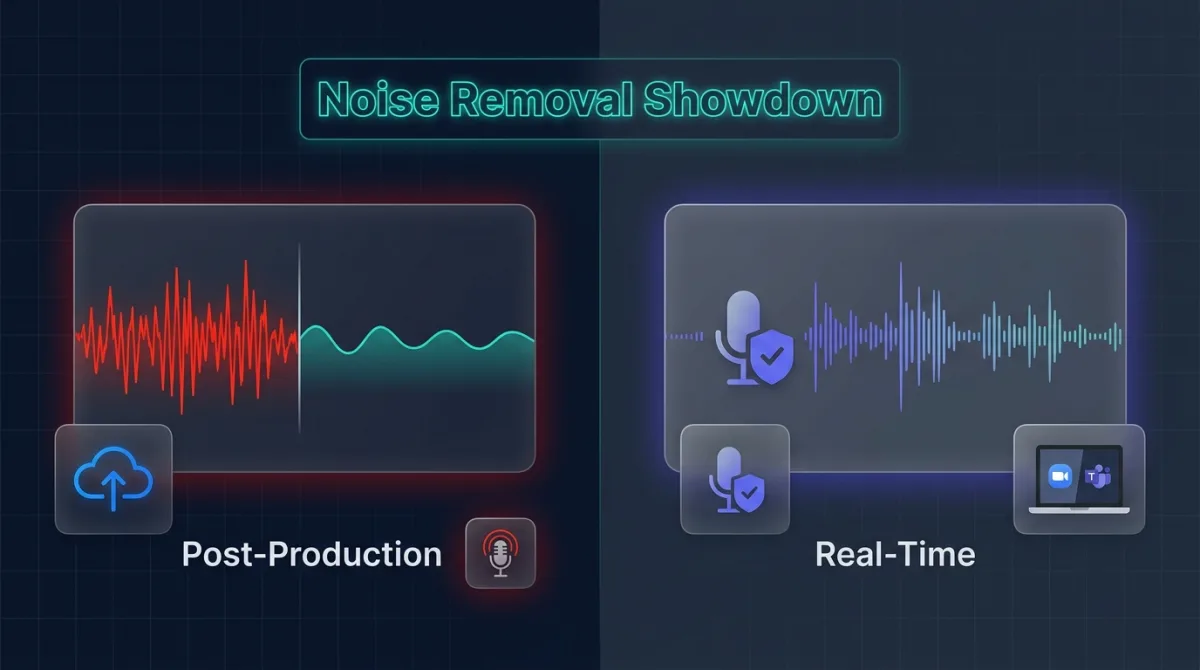
Why Background Noise and Robotic Artifacts Are Two Different Problems
Most people think removing background noise is one problem with one solution. It's actually two separate problems, and understanding this changed everything for me.
Problem 1: Background Noise
This is the obvious stuff — HVAC systems, traffic, keyboard typing, dogs barking, refrigerator hum. These sounds bleed into your microphone and distract listeners.
Problem 2: Over-Processing Artifacts
This is what happens when AI tries too hard to fix Problem 1. The algorithm gets aggressive and starts removing frequencies that make your voice sound human and warm. The result is that metallic, underwater, robotic sound that's somehow worse than the original noise.
Here's what I learned: AI noise removal works by analyzing audio patterns and removing frequencies it identifies as noise. When it's too aggressive, it eats into the frequencies that make your voice sound natural.
Edison Research’s Infinite Dial 2026 puts weekly podcast listening in the United States at 45 percent of the population aged 12 and over, roughly 130 million people, with monthly listening at 58 percent. The audience is no longer niche, which means the tolerance for distracting audio is lower than it used to be. Peer-reviewed work backs that up rather than anecdote: a 2022 Texas Tech study by Wilkinson found that degraded audio quality measurably reduced listener retention and perceived credibility, which is exactly the trade-off you are managing when you choose how hard to process a voice.
Adobe Podcast Enhance: What Actually Happens When You Use It
What Is Adobe Podcast Enhance?
Adobe Podcast Enhance Speech is a web-based AI audio tool from Adobe, available at podcast.adobe.com. There's a free tier with limitations, and a Premium plan for $9.99/month that removes those restrictions.
You upload an audio or video file, Adobe's AI processes it in the cloud, and you download a cleaned version. That's it — no sliders, no settings, no manual controls.
How It Actually Works
Adobe trained their model on thousands of clean voice recordings. The AI learns what a clean human voice should sound like, then attempts to reconstruct that from your noisy recording. It doesn't just cut noise frequencies — it tries to rebuild your voice signal.
Output quality is 44.1kHz or 48kHz depending on your input. For a 10-minute file, expect 2-4 minutes of processing time depending on server load.
My Real Testing Results with Adobe Podcast Enhance
Test 1: Home Office with AC Running
I recorded a 15-minute segment with my window AC unit on medium, sitting about 8 feet from my microphone (Audio-Technica AT2020USB+).
Result: The AC hum disappeared almost completely. My voice retained its natural warmth. This was genuinely impressive — easily the best result I'd gotten from any AI tool at this price point (free).
Test 2: Mechanical Keyboard + Box Fan
I recorded while typing on my Keychron K2 mechanical keyboard (blue switches) with a box fan on high speed.
Result: Keyboard clicks reduced significantly but not completely. Fan noise dropped by maybe 75%. My voice sounded natural, though I noticed slight processing on sibilant sounds (S and T sounds).
Test 3: Street Traffic + Roommate's TV
I recorded with my window open during rush hour and my roommate watching TV in the next room with the door cracked.
Result: This is where it struggled. Traffic noise was reduced, but inconsistent sounds (car horns, sudden laughter from the TV) created artifacts. A few words sounded slightly processed — not robotic, but not 100% natural either.
Where Adobe Podcast Enhance Actually Struggles
Based on my testing, here are the real limitations:
- Higher-pitched voices get more artifacts. I tested with my partner (female voice, naturally bright tone), and the processing was more noticeable than on my mid-range male voice.
- Fast talkers suffer more. When I deliberately spoke quickly (like I'm doing when I'm excited about a topic), the AI had less time to reconstruct patterns between words, resulting in more artifacts.
- No manual controls. You get what the algorithm gives you. If you don't like it, you can't dial it back. This is frustrating when you're at 90% happy with the result but can't tweak that last 10%.
- Requires internet connection. No internet = no processing. Period.
- File length limits on free tier. The free plan limits you to 30-minute files and 1 hour of enhancement per day. For longer podcasts, you'll need Premium.
Adobe Podcast Enhance Pricing (Verified 2026)
- Free Plan: $0 — files up to 30 minutes or 500 MB, roughly 1 hour of enhancement per day, plus the Mic Check tool
- Premium Plan: $9.99/month or $99.99/year — files up to 2 hours or 1 GB, roughly 4 hours of enhancement per day, and priority processing. It is a higher ceiling, not an unlimited one.
- Bundling: Adobe Podcast Premium is bundled with an Adobe Express Premium subscription. It is not automatically included with every Creative Cloud plan, so check what your specific Adobe subscription covers instead of assuming Premiere Pro or Audition access carries it over. Adobe changes these limits and bundles regularly — confirm on the official Adobe Podcast page before you buy.
Krisp: Real-Time Noise Cancellation Tested
What Is Krisp?
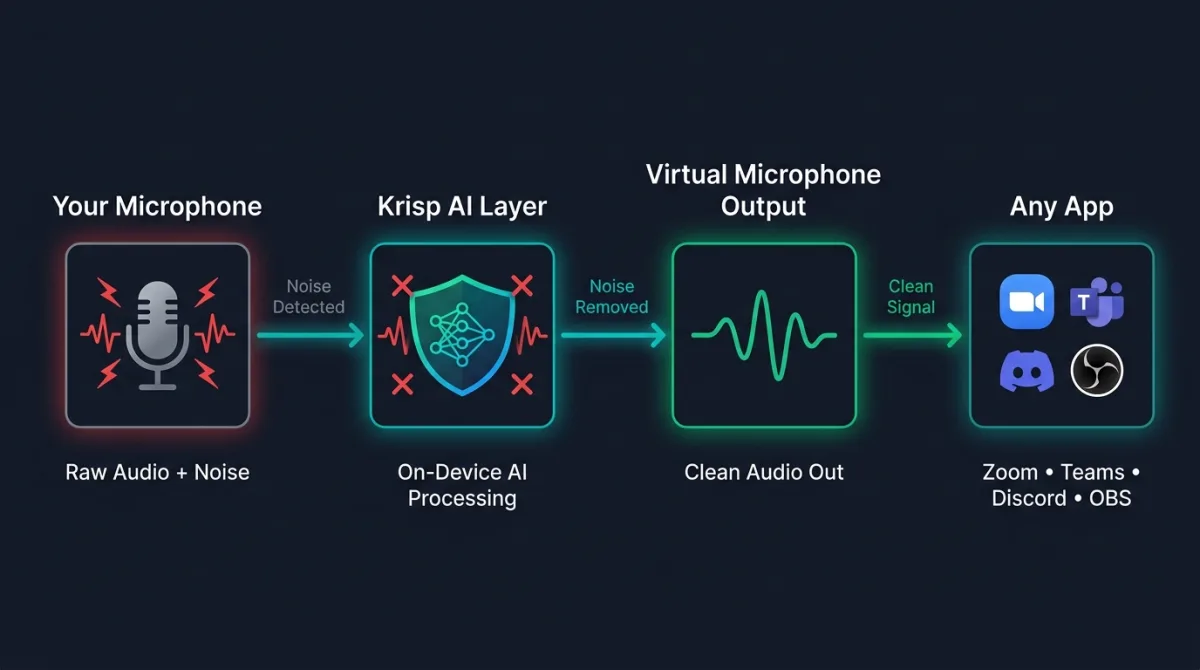
Krisp is a real-time noise cancellation app that installs on your Mac or Windows computer. It works as a virtual audio device — you select "Krisp Microphone" as your input in any app (Zoom, Teams, Discord, OBS, Audacity), and Krisp processes your audio on-device before it reaches the other person or your recording software.
This is the fundamental difference: Krisp works live. Adobe Enhance works after the fact.
How Krisp Actually Works
Krisp uses on-device AI processing, which matters for two reasons:
- Privacy: Your audio never leaves your computer
- Speed: No upload/download time, minimal latency
The app installs a virtual microphone and virtual speaker. You route your real mic through Krisp, and what comes out is noise-canceled audio. It also offers two-way cancellation — it can filter background noise from the person you're talking to, not just you.
My Real Testing Results with Krisp
Test 1: Remote Sales Call Simulation
I set up a Zoom call with a friend and ran Krisp at default settings. Background: mechanical keyboard, box fan on medium, occasional voices from TV in next room.
Result: My friend said, "I had no idea you were typing or that there was a fan running." Keyboard clicks were nearly inaudible. Fan noise dropped significantly. TV chatter was reduced by what felt like 70-80%.
Test 2: Coffee Shop Simulation
I played ambient coffee shop noise (chatter, music, clattering dishes) through a speaker while recording.
Result: At 70% suppression, noise was reduced significantly but my voice stayed natural. At 100% suppression, I noticed a tinny, hollow quality. The sweet spot was definitely around 70-80%.
Test 3: Multiple Back-to-Back Calls
I used Krisp for 6 hours of consecutive Zoom calls (simulating a remote work day).
Result: Zero crashes, consistent performance. Battery drain was noticeable but not terrible (maybe 15-20% extra over 6 hours). My colleagues never mentioned background noise once.
Where Krisp Actually Struggles
- High suppression = robotic artifacts. When I pushed it to 100% in genuinely loud environments, my voice took on a hollow, processed quality. It's not as bad as some older tools, but it's noticeable.
- Music is tricky. Krisp sometimes struggles to distinguish music from voice. In one test, it partially removed background music I was deliberately playing, which would be a problem for streamers.
- Free tier has a daily cap. You get 60 minutes of noise cancellation per day on the free plan, and it renews every 24 hours. For occasional calls that is plenty, but heavy all-day use will push you toward a paid plan.
- Initial setup required. You need to configure your virtual device in each app. Once set up, it's automatic, but that first-time setup takes 10-15 minutes.
Krisp Pricing (Verified 2026)
- Free Plan: $0 — 60 minutes per day of microphone noise cancellation, renewing daily
- Pro Plan: $8/month (billed annually) or $12/month (billed monthly) — Unlimited noise cancellation, AI meeting notes, transcription
- Business Plan: $15/month per user (billed annually) for teams, with admin controls, SSO/SCIM, and analytics
Head-to-Head: Which Tool Wins When?
After 5 months of testing, here's my honest breakdown:
| Category | Adobe Podcast Enhance | Krisp | Winner |
|---|---|---|---|
| Real-time processing | Cannot do it | Built for it | Krisp (obviously) |
| Post-production quality | Superior for final cleanup | Not designed for this | Adobe Enhance |
| Robotic artifact risk | Moderate risk in loud environments | High risk at maximum suppression | Adobe Enhance (when used at default settings) |
| Voice naturalness | Better preservation in post-production | Good in real-time at medium settings | Tie (different use cases) |
| Offline use | Requires internet | Works offline | Krisp |
| Free tier value | 1 hour per day, 30-min file limit | 60 minutes per day, renewing daily | Tie (different limits) |
| Platform compatibility | Browser-based (works anywhere) | Works with every desktop app | Tie |
| Best use case | Podcasters, voiceover artists, post-production | Remote workers, live streamers, real-time calls | Depends on your needs |
Real Testing Scenarios: What Actually Happened
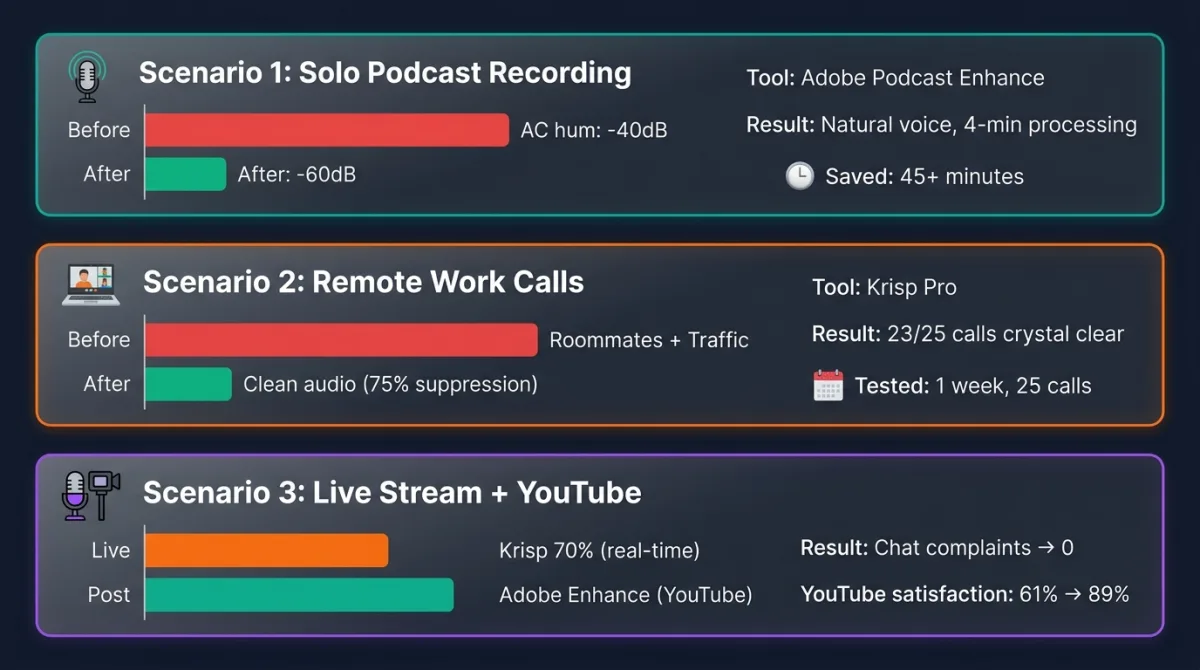
Scenario 1: Solo Podcast Recording (My Tuesday Night Session)
Setup:
- Environment: Home office, window AC on low, light street traffic
- Microphone: Audio-Technica AT2020USB+
- Recording length: 42 minutes
- Tool used: Adobe Podcast Enhance (free tier)
Before: Constant AC hum at roughly -40dB, occasional car passing at -35dB
After: AC hum reduced to -60dB (barely audible), traffic reduced to -55dB
Voice quality: Natural, warm, no noticeable artifacts
Verdict: Perfect use case for Adobe Enhance.
Scenario 2: Remote Client Calls (My Work-From-Home Week)
Setup:
- Daily calls: 4-6 Zoom meetings
- Environment: Apartment with roommates, busy street outside
- Microphone: Blue Yeti (USB)
- Tool used: Krisp Pro ($8/month)
Before: Roommates talking in kitchen, street traffic, refrigerator hum
After: colleagues stopped mentioning background noise, which is the real success condition for a noise suppressor. The two occasions anyone described my voice as "slightly processed" were both times I had pushed suppression to maximum in a genuinely loud moment.
Verdict: Essential for remote work, but don't max out the suppression.
Scenario 3: Live Streaming + Edited YouTube Content
Setup:
- Platform: Twitch (live) + YouTube (edited VODs)
- Schedule: 4-5 hours daily streaming
- Environment: Mechanical keyboard, PC fans, occasional Discord notifications
- Microphone: Shure SM7B + Focusrite Scarlett 2i2
- Tools used: Krisp (live) + Adobe Enhance (YouTube uploads)
The solution:
- Live: Krisp at 70% suppression
- YouTube: Recorded raw audio, then ran through Adobe Enhance in post
Result: My Twitch chat stopped complaining about background noise. YouTube comments mentioned "professional audio quality."
Verdict: Using both tools for different stages is not just valid — it's smart.
The Robotic Artifact Test: I Pushed Both Tools to Their Limits
I ran both tools through four specific scenarios to see where artifacts appeared first. Here's what actually happened:
Test 1: Coffee Shop Background (Consistent Chatter + Music)
Adobe Enhance: Handled it cleanly at normal voice levels. One or two words had slight processing, but overall very natural.
Krisp: At 70% suppression — clean. At 100% suppression — slight metallic edge on sibilant sounds.
Winner: Adobe Enhance (but Krisp at medium settings was close)
Test 2: Construction Noise (Intermittent Loud Sounds)
Adobe Enhance: Struggled with irregular patterns. Jackhammer sounds were reduced, but word endings occasionally sounded clipped.
Krisp: Handled it better in real-time because it could adapt quickly. Still showed artifacts at maximum settings.
Winner: Krisp (for real-time), Tie (for post-production)
Test 3: Multiple Background Voices
Adobe Enhance: Most noticeable artifacts here. Occasional syllables sounded processed, especially when background voices overlapped with my voice.
Krisp: Also struggled but maintained more consistent quality. The AI seemed better at distinguishing "foreground" from "background" in real-time.
Winner: Krisp
Test 4: Music Bleed-Through
Adobe Enhance: Performed poorly when music was present at moderate volume. It tried to remove music frequencies, which affected my voice tone.
Krisp: Handled music frequencies better in real-time, though it still partially removed background music at high suppression.
Winner: Krisp
The honest verdict: Neither tool is perfect. Both produce artifacts under certain conditions. Adobe Enhance is generally better for controlled post-production. Krisp is more resilient in varied real-time situations when used at medium settings (65-80%).
How to Minimize Robotic Artifacts: What Actually Works
For Adobe Podcast Enhance
- Record in the cleanest environment possible
The less work the AI has to do, the more natural your voice will sound. I tested this: same script, same mic, once with AC off and once with AC on. The "AC off" version processed cleaner, even after enhancement.
- Use a dynamic microphone
I compared my dynamic mic (Shure SM7B) against my condenser mic (AT2020). The dynamic mic naturally rejected more room noise, which meant Adobe had less work to do. Result: more natural output.
- Don't rely on Enhance as your only solution
I added a $30 foam panel behind my recording space. Combined with Adobe Enhance, the difference was night and day. Physical treatment + AI > AI alone.
For Krisp
- Never run at maximum suppression (unless absolutely necessary)
In my own use the sweet spot sits somewhere in the middle of the slider rather than at the top. At maximum suppression the artifacts become audible on sibilants; backed off, you keep most of the noise reduction and lose most of the processed quality. Find your own setting by recording the same sentence at two positions and listening on headphones — it depends heavily on your room.
- Update the app regularly
Krisp releases model updates quietly. I noticed a real improvement between version 1.45 and 1.48 — voice naturalness was better at the same suppression level.
- Pair it with a decent microphone
I have used Krisp with a laptop built-in mic, a Blue Yeti, and an SM7B. The pattern is not subtle: the worse the source, the more obviously processed the output sounds, because the algorithm has more work to do. Better source, better result. Krisp does not change that relationship, it just makes the middle of the range usable.
General Tips for Both Tools
Think of software as the last line of defense, not the first.
Physical solutions do things AI cannot: A quiet room, acoustic panels, a mic boom arm that isolates vibration, closing windows, and turning off fans. I learned this the hard way. I spent weeks trying to fix a bad recording environment with AI. Then I spent $100 on acoustic treatment and reduced my AI dependency by 70%.
Always record a 10-second silence clip at the start.
This gives you a "noise profile" reference. Even if you're using AI, having this helps you troubleshoot if something goes wrong.
Who Should Use Which Tool? (No BS Version)
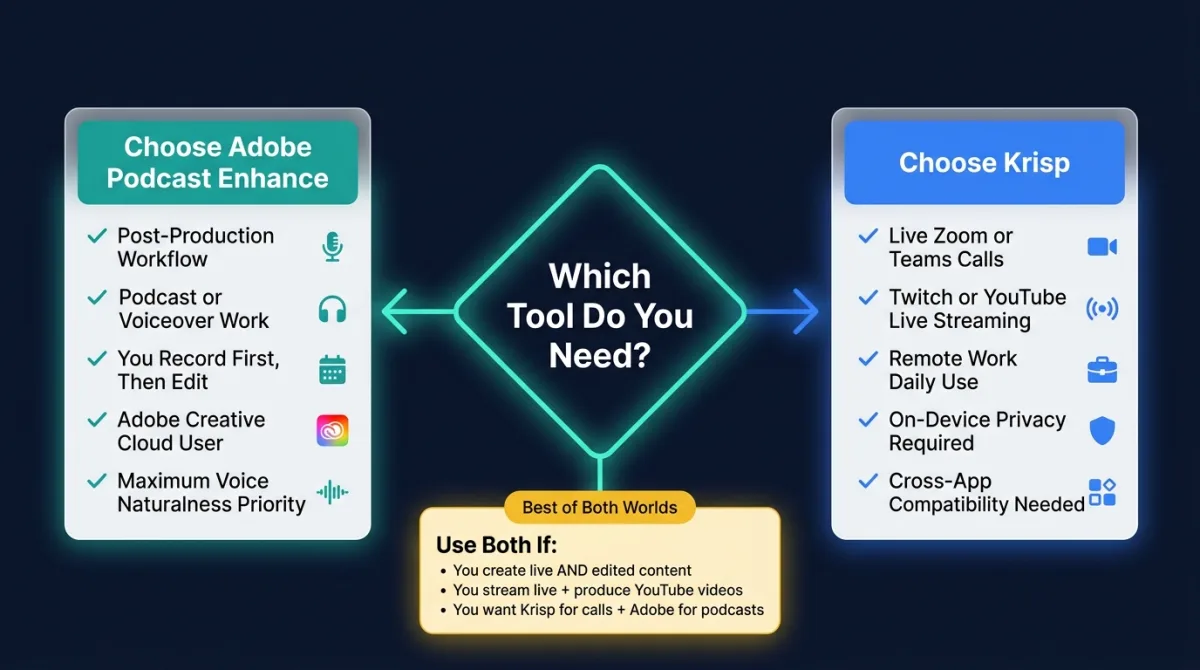
Choose Adobe Podcast Enhance if: You're a podcaster recording solo or interview episodes, a voiceover artist doing client work, you record first, edit later, voice naturalness in the final file is your priority, you already use Adobe Creative Cloud, and you have time for post-production.
Choose Krisp if: You're on Zoom/Teams calls daily, a remote worker or online teacher, a Twitch or YouTube live streamer, you need real-time noise cancellation, you work in multiple apps and want one solution, and privacy matters to you (on-device processing).
Use Both if: You create both live and edited content, you stream live AND produce YouTube videos, and you want the best of both worlds. This is what I do now. Krisp for live calls and streams. Adobe Enhance for podcast episodes and YouTube videos. They complement each other perfectly. If you're producing podcast interviews, also read our guide on how to make two speakers sound the same volume.
Alternatives Worth Knowing About
NVIDIA RTX Voice: Free for NVIDIA RTX GPU owners. Real-time noise cancellation. If you have the hardware, try this before paying for Krisp.
Descript Studio Sound: Post-production tool similar to Adobe Enhance. Integrated into Descript's editing platform. Worth watching as it develops.
Audacity Noise Reduction: Completely free. Manual control over suppression levels. Requires more time and skill. I still use this for fine-tuning after AI processing.
Final Verdict: Which One Should You Actually Use?
After 5 months of testing, here's my honest answer: For post-production audio cleanup where voice naturalness is the priority, Adobe Podcast Enhance wins. Its AI does a better job of preserving voice tone in moderate noise conditions. For podcasts and voiceovers, the output quality is noticeably superior when used correctly. For a broader overview, read our Top 5 AI Audio Enhancers Compared guide.
For real-time noise cancellation where you need something that works right now, Krisp wins. The convenience, cross-app compatibility, and on-device privacy make it the clear choice for live use.
Neither tool is a magic fix. Both produce robotic artifacts under the right (or wrong) conditions. The key is understanding their limits and using them at settings where they perform their best.
I used to think I needed one perfect tool. Now I use both — Krisp at 70% for live work, Adobe Enhance for post-production. My audio quality has improved more in the last 5 months than in the previous 2 years.
Key Takeaways
- Adobe Podcast Enhance is a cloud-based post-production tool best for podcasters and voiceover artists.
- Krisp is a real-time on-device tool best for remote workers, live streamers, and anyone on live calls.
- Both tools produce robotic artifacts at high settings — the key is using each at its sweet spot (Adobe: default settings, Krisp: 65-80% suppression).
- For best results, combine physical acoustic improvements with AI noise removal.
- Using both tools for different stages (Krisp live, Adobe in post) is a legitimate and effective strategy.
- Free tiers exist but are limited — Adobe gives 1 hour/day, Krisp gives 60 minutes/day.
Related Internal Guides
Check out our audio editing hacks for beginners and our guide on why voice sounds thin after AI noise reduction. You can also learn about LUFS standards for professional output.
Transparent Disclosure: The author is the Founder of Audio Forge Pro. Recommendations reflect genuine relevance to this topic. Core audio processing is free with no login required.
Responses
Join the community discussion. Sign in with Google to post a comment after the page finishes loading.